Skip to main contentTailor AI LogoTailor AI

    Salesforce Integration

    Tailor adds the companies visiting your site to Salesforce, so your sales team sees who's interested. New companies become Accounts. Companies you already have get an activity when they visit. Tailor can also label each Account with its size, industry and the pages it viewed.

    How Teams Use It

    Story 1

    Your rep sees a prospect is back on your site

    Globex is already in your Salesforce, but the deal went quiet. Today, 5 people from Globex read your pricing page.

    Within an hour, a new activity shows up on the Globex Account with the pages they read. The account owner sees it and reaches out.
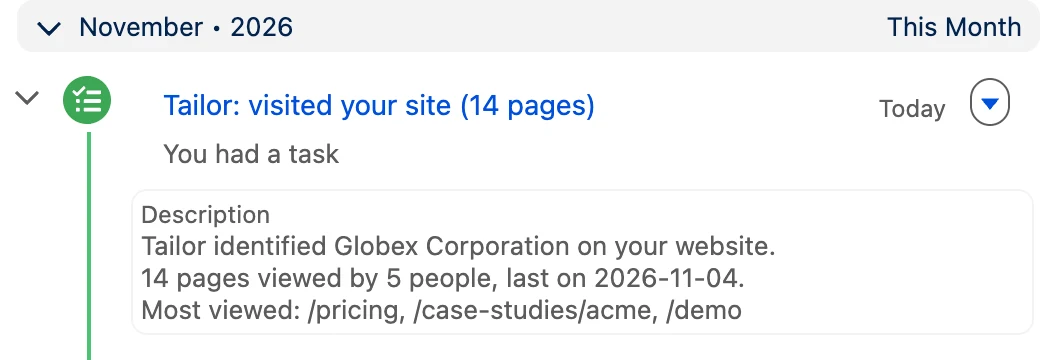
    A completed task on a Salesforce Account's Activity timeline titled Tailor: visited your site (14 pages). Its description reads: Tailor identified Globex Corporation on your website. 14 pages viewed by 5 people, last on 2026-11-04. Most viewed: /pricing, /case-studies/acme, /demo.
    The activity on the Globex Account. At most one a day.

    You need: Step 1, and Sync every hour on in Step 4.

    Story 2

    Your team gets a list of new companies to call

    Stark Logistics isn't in your Salesforce yet. A few people from Stark read your pricing page.

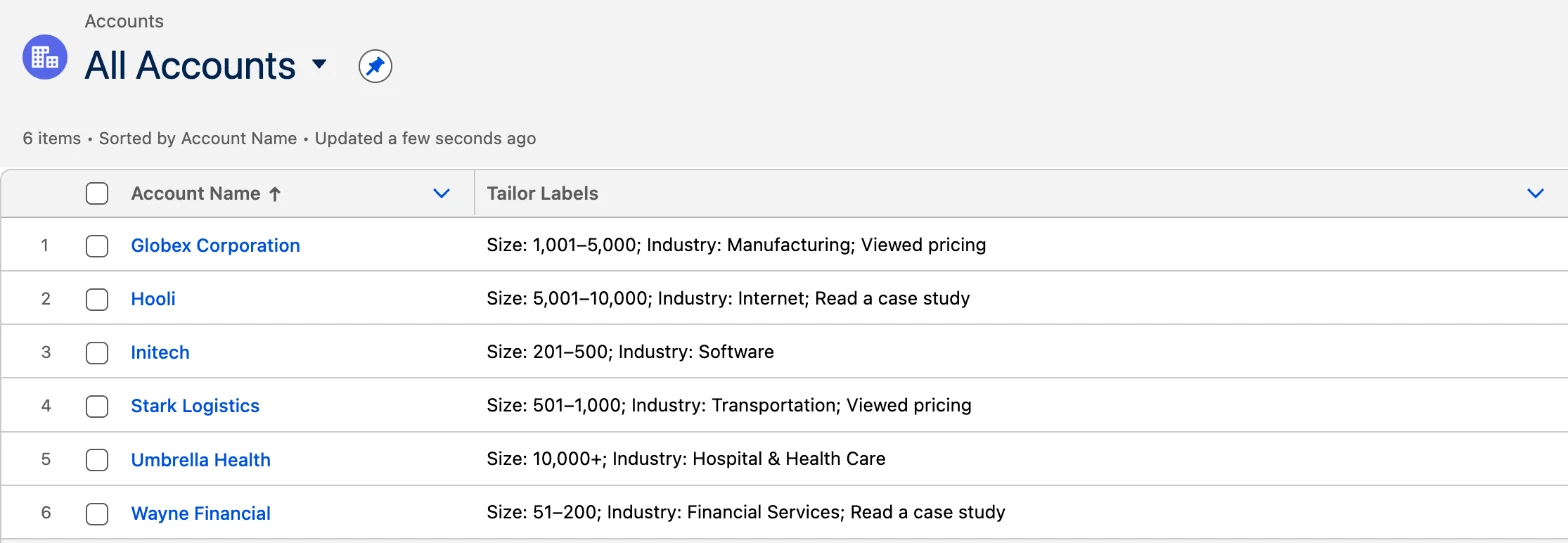
    Tailor adds Stark as a new Account and labels it Size: 501–1,000, Industry: Transportation and Viewed pricing. Your team filters Accounts by Viewed pricing to see who to call first.

    A Salesforce All Accounts list view with a Tailor Labels column. Stark Logistics shows Size: 501–1,000; Industry: Transportation; Viewed pricing. Five more example Accounts show similar labels.
    Tailor's labels on your Accounts list.

    You need: all four steps, including labels. To skip casual visitors, pick a segment like Engaged visitors in Step 2.

    Quick start

    Set up in 4 steps

    Open Salesforce in Tailor
    1. 1Connect SalesforceIn Tailor, open Settings › Your connections › Salesforce and approve the connection.Details
    2. 2Choose who to sendEveryone Tailor identifies, or only a segment.Details
    3. 3Set up labelsOptional. Add a field in Salesforce for labels, then pick the labels.Details
    4. 4Preview, then addCheck what Tailor will add, add it, and turn on the hourly sync.Details

    Step 1: Connect Salesforce

    Connecting adds nothing. Tailor only writes to Salesforce when you press Add to Salesforce or turn on the hourly sync.

    1. In Tailor, open Settings › Your connections › Salesforce.
    2. Click Connect Salesforce, sign in to Salesforce if it asks, and click Allow.
    3. Tailor now shows Connected.

    Whoever connects owns the new Accounts

    Tailor acts as the person who clicked Allow. They own the new Accounts, and every change shows under their name. Connect with the login those Accounts should belong to, and make sure it can create Accounts and Tasks.

    Step 2: Choose Which Visitors to Send

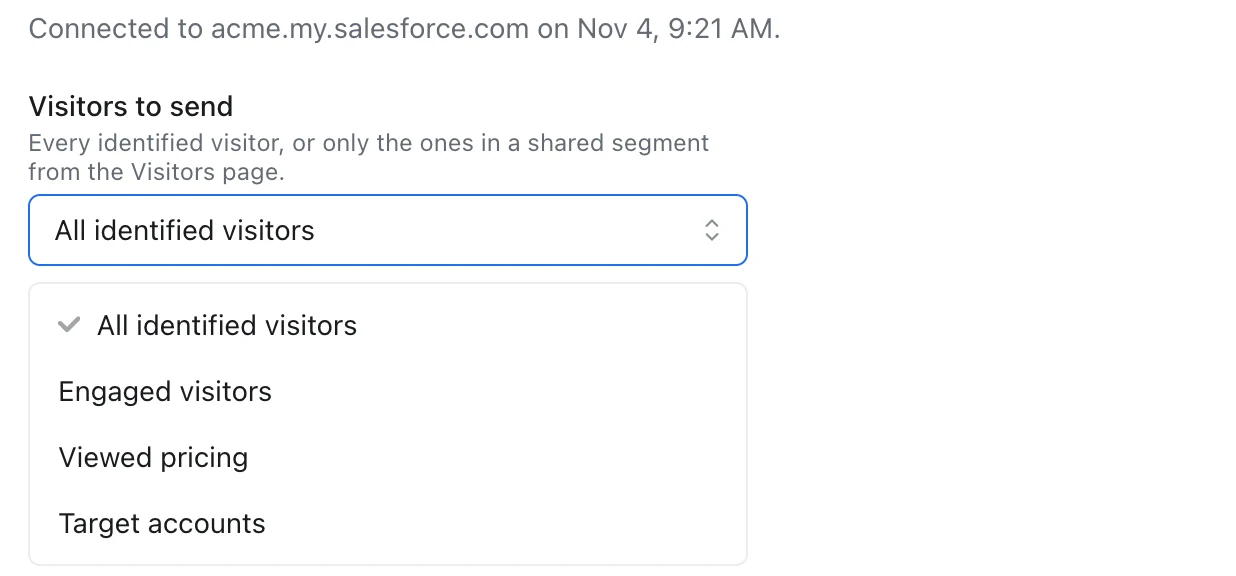
    Under Visitors to send, pick one:

    All identified visitors. Every company Tailor identifies. This is the default.

    A segment. Only companies in that segment, like "Engaged visitors". Make segments on the Visitors page and share them with your team.

    Your pick saves right away.

    The Visitors to send dropdown in Tailor, open, with All identified visitors chosen and three shared segments listed: Engaged visitors, Viewed pricing and Target accounts
    Only shared segments show up here.

    How does Tailor know where someone works? See Visitor Identification.

    Step 3: Set Up Labels (Optional)

    Labels are short tags like Size: 51–200, Industry: Software or Viewed pricing. Tailor puts them in one field on each Account, so your team can filter by them. Skip this step if you don't need them.

    3a. In Salesforce: add a Tailor Labels field

    A Salesforce admin does this once:

    1. Click the gear icon, then Setup. Go to Object Manager, then Account, then Fields & Relationships, and click New.
    2. Pick Picklist (Multi-Select) and click Next.
    3. Set Field Label to Tailor Labels. Field Name fills in by itself. Salesforce asks for at least one value, so type anything, like Tailor.
    4. Uncheck "Restrict picklist to the values defined in the value set". Otherwise Tailor can't add new labels.
    5. Let the person who connects Tailor see and edit the field. Add it to your Account page, then save.

    A Text Area (Long) field also works. Tailor adds its labels on one line at the end and leaves the rest alone. The picklist is easier to filter, so we recommend it.

    3b. In Tailor: pick the field and your labels

    Back in Tailor, reload the Salesforce page and find Label Accounts.

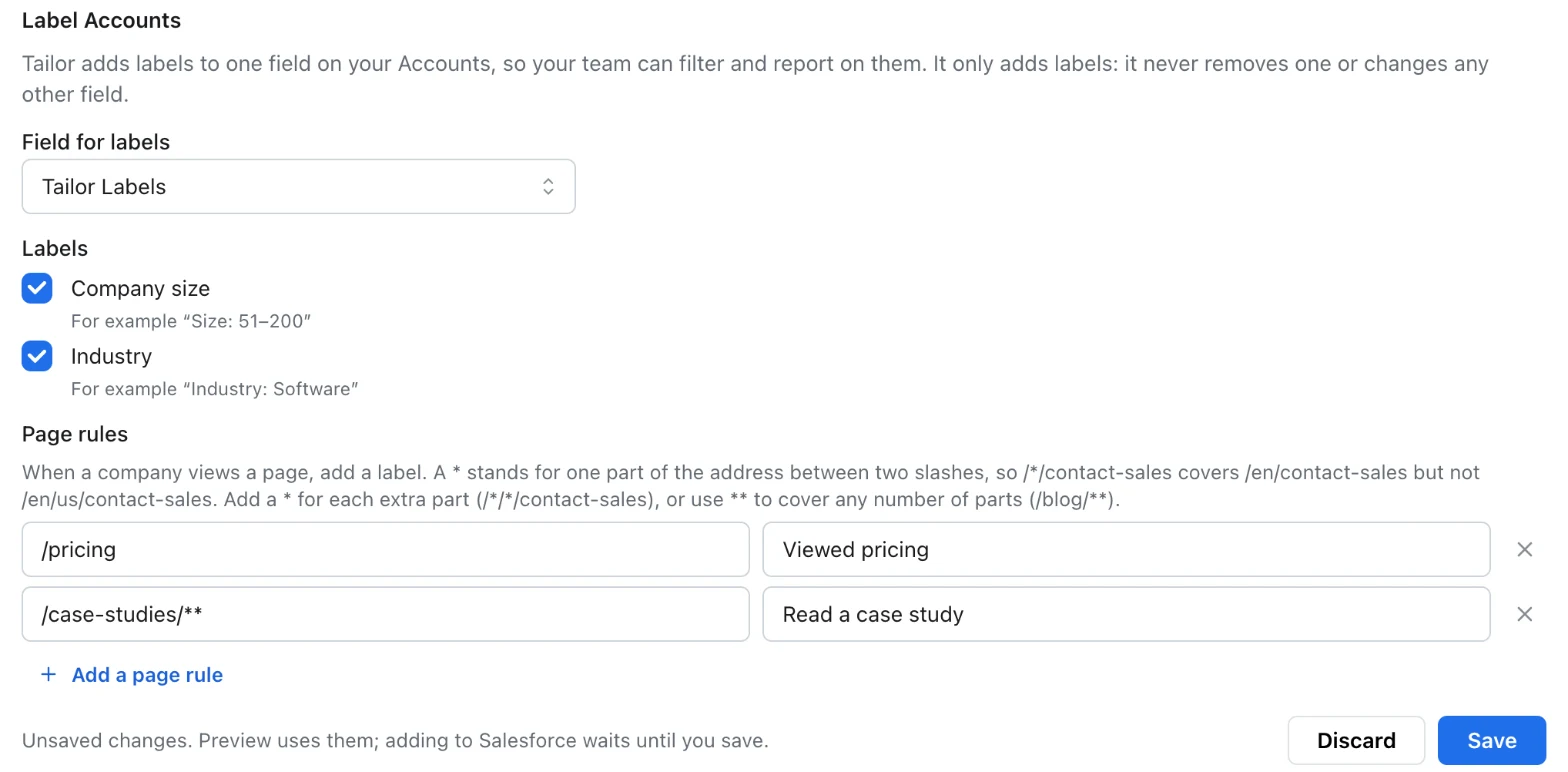
    1. Pick Tailor Labels under Field for labels.
    2. Tick Company size, Industry, or both.
    3. Add page rules: when a company views a page, it gets a label. For example, /pricing gets Viewed pricing. Use ** for a whole section, like /case-studies/**.
    4. Click Save and confirm. Labels start on the next sync.
    Tailor's Label Accounts section: Field for labels set to Tailor Labels, Company size and Industry ticked, and two page rules, /pricing labeled Viewed pricing and /case-studies/** labeled Read a case study, with Discard and Save buttons
    Preview uses your changes before you save.

    Step 4: Preview, Then Add to Salesforce

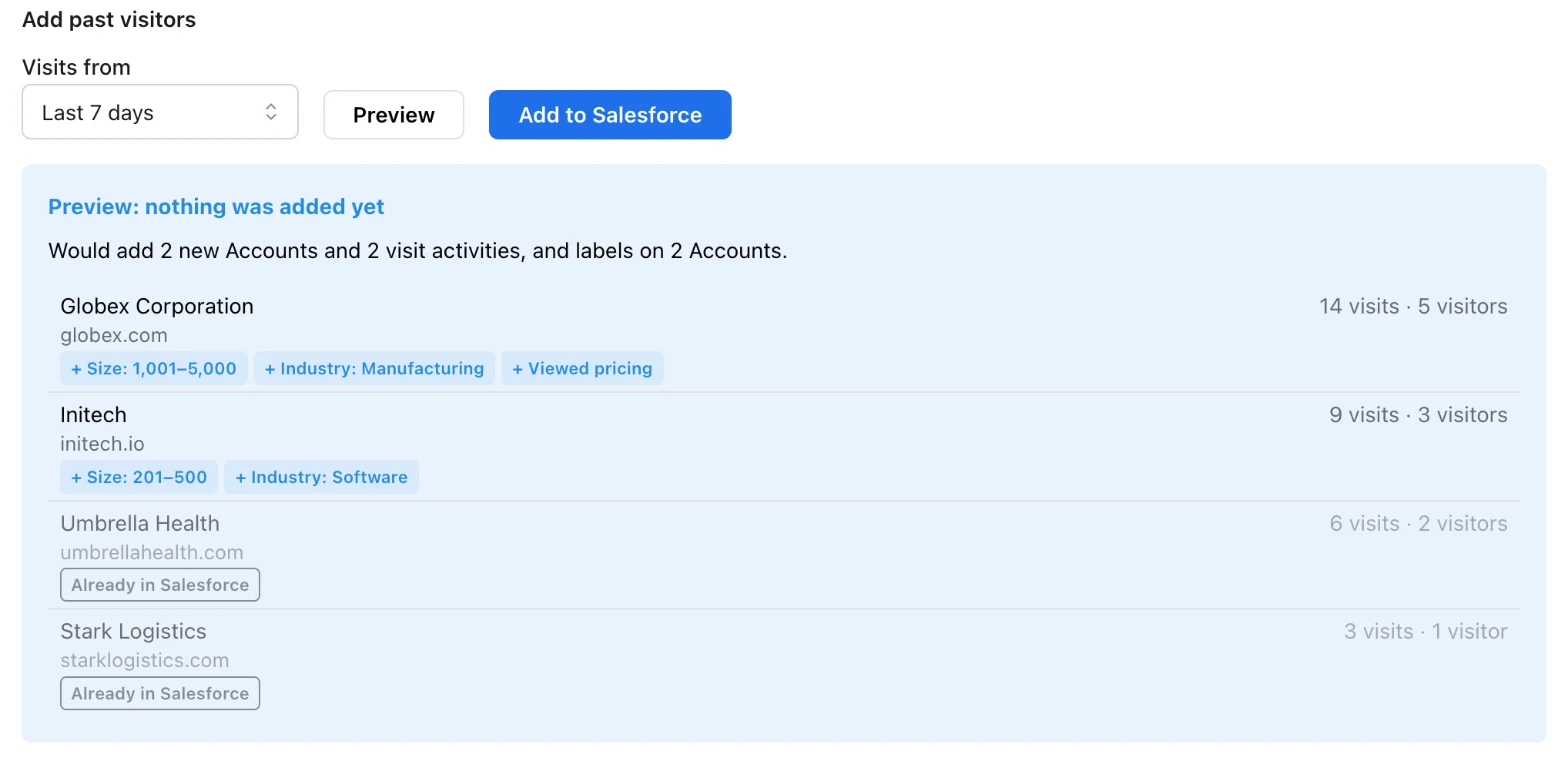
    Under Add past visitors, pick how far back to look and click Preview. Nothing is added yet. You see which companies Tailor would add, and their labels.

    A preview in Tailor: Would add 2 new Accounts and 2 visit activities, and labels on 2 Accounts. Globex Corporation and Initech are new, each with plus-sign label tags like Size: 1,001–5,000 and Viewed pricing. Umbrella Health and Stark Logistics are dimmed and tagged Already in Salesforce.
    New companies first. Companies you already have are greyed out and get an activity instead.

    Looks right? Click Add to Salesforce. Then turn on Sync every hour so new visitors are added on their own.

    Big batches ask first

    Adding over 100 new Accounts asks you to confirm. Very large batches add 5,000 right away and the rest over a few hours.

    Safe to run twice

    Tailor never adds the same company twice. Running it again only adds what's missing.

    How Tailor Matches Companies

    Tailor looks for an Account with the same website:

    If Salesforce has…Tailor…
    No Account with that websiteCreates one, with the company's name, website and size.
    One Account with that websiteAdds a visit activity to it, at most once a day.
    Two or moreSkips the company, so it never updates the wrong one.

    What Tailor Changes

    Tailor adds

    • A new Account for each company that isn't in Salesforce yet
    • A "visited your site" activity on Accounts you already have
    • Labels, in the one field you picked

    Tailor never

    • Deletes anything in Salesforce
    • Removes a label, including ones your team typed
    • Changes any other field on an Account you already have

    Changes run your normal Salesforce automations. To stop labels, set Field for labels to Don't add labels. To stop everything, click Disconnect. What Tailor already added stays, and reconnecting won't add duplicates. Every run is listed on the Activity tab in Tailor.

    Troubleshooting

    Salesforce isn't in Your connections

    Ask the Tailor team to turn it on for your account.

    "No field can hold labels yet"

    Add a field with Step 3a, then reload. Already did? Check that "Restrict picklist" is unchecked and the person who connected Tailor can edit the field.

    Tailor stopped adding companies

    Salesforce signed Tailor out, usually because the person who connected left or lost access. The Salesforce page in Tailor shows Needs you. Click Connect again to pick up where it left off.

    A company was skipped

    Two of your Accounts share its website. Merge them in Salesforce and it's added on the next run.

    Nothing is being added

    Your segment may have been deleted or unshared. Pick another under Visitors to send.

    "Tailor is syncing with Salesforce right now"

    A run is in progress. Try again in a minute.