
MCP Integration
Connect AI assistants and developer tools to your Tailor account via MCP (Model Context Protocol). Query traffic, experiments, enrichment, ads data, and more from Claude, Claude Code, ChatGPT, or your own agentic workflows. Prefer plain HTTP? The same account works through the REST API with an API key.
What is MCP?
MCP (Model Context Protocol) is an open standard that lets AI assistants connect to external tools and data sources. When you connect Tailor via MCP, your AI assistant can read your traffic data, review experiment results, query enrichment data, pull ads performance, and even take actions like starting or stopping experiments.
This means you can ask questions like "Which campaigns drove the most conversions last week?" or "Show me enterprise visitors who hit our pricing page" and get answers directly from your Tailor data, without switching tools.
Note: Tailor's MCP integration is a work in progress and likely to evolve as we add new capabilities. Claude and ChatGPT change their own MCP setup flows often, too. The setup details below are meant as examples only. If something looks different from what you see, check the Tailor settings page or reach out to support.
Setup
Step 1: Find your MCP URL
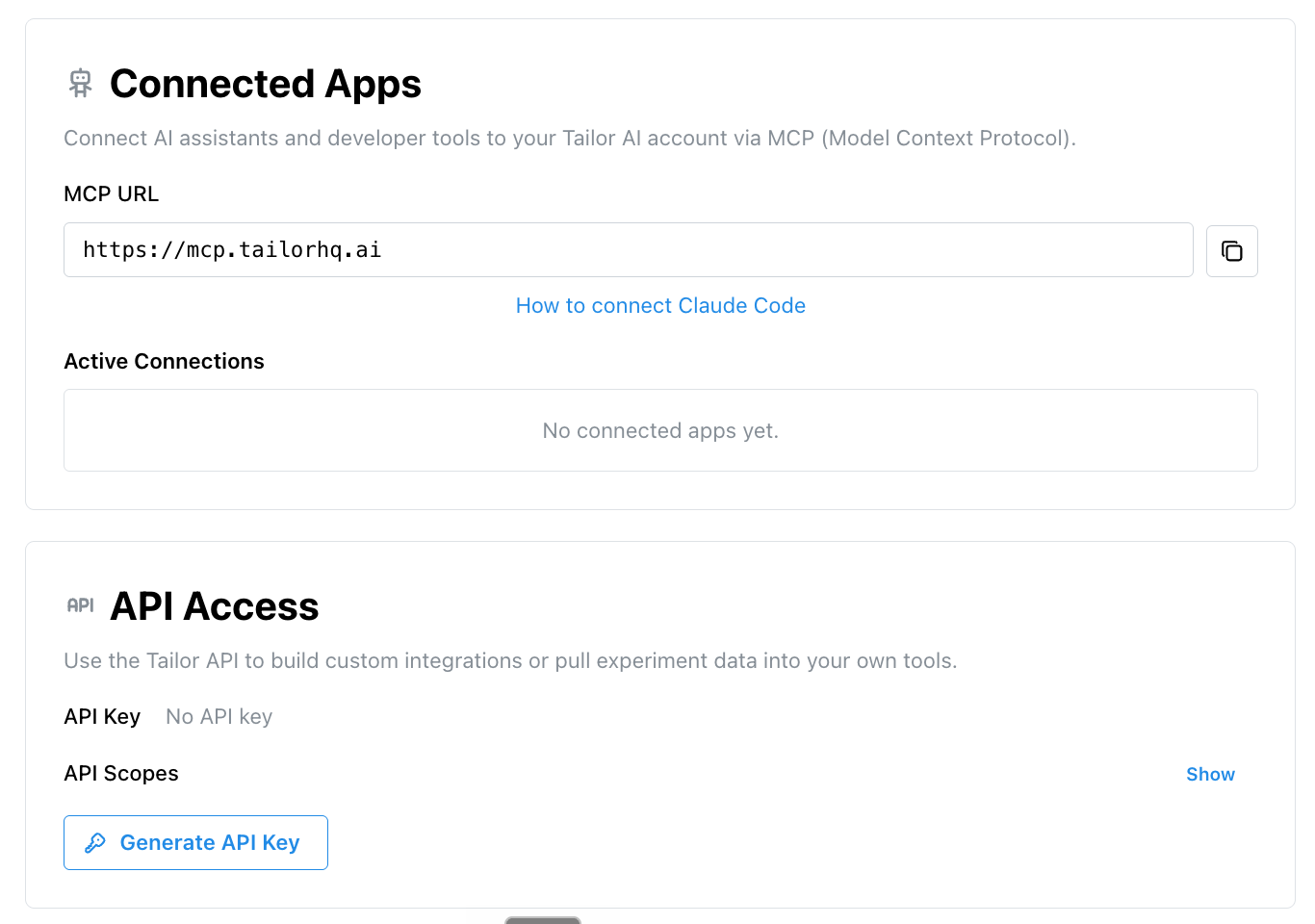
Go to Settings → AI Agents (MCP) & API. Your MCP URL is shown under AI Agents (MCP), and an API key (for headless or scripted use) can be generated under API Access.
Step 2: Connect your client
Claude CodeOAuth or API key▶
Run this in your terminal. You'll be prompted to authorize access in your browser the first time.
You can also click How to connect Claude Code in the AI Agents (MCP) card for an in-app, copy-paste version of this command and the headless API-key variant.
Using an API key instead (for CI/CD or headless environments)
Claude Desktop or claude.aiOAuth flow▶
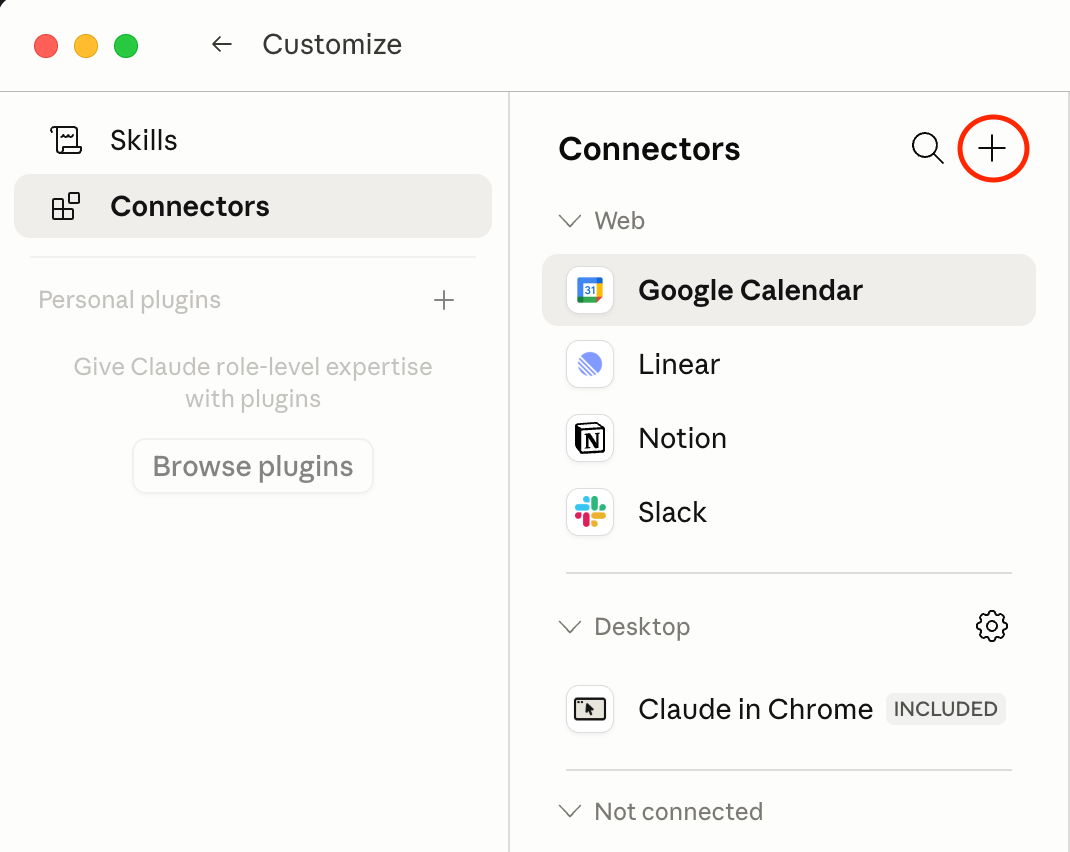
1. Open Customize → Connectors, click the + button in the top right, then Add custom connector.
2. Enter
https://mcp.tailorhq.aiand click Connect.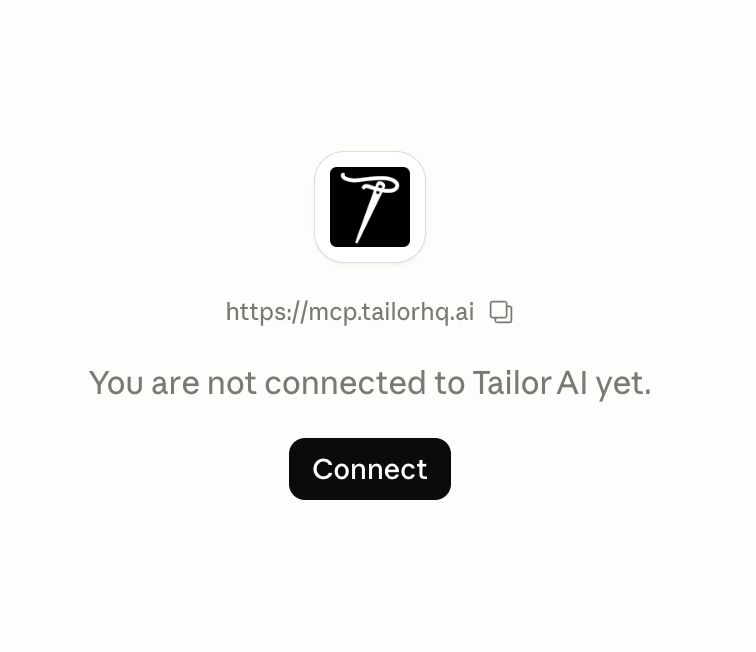
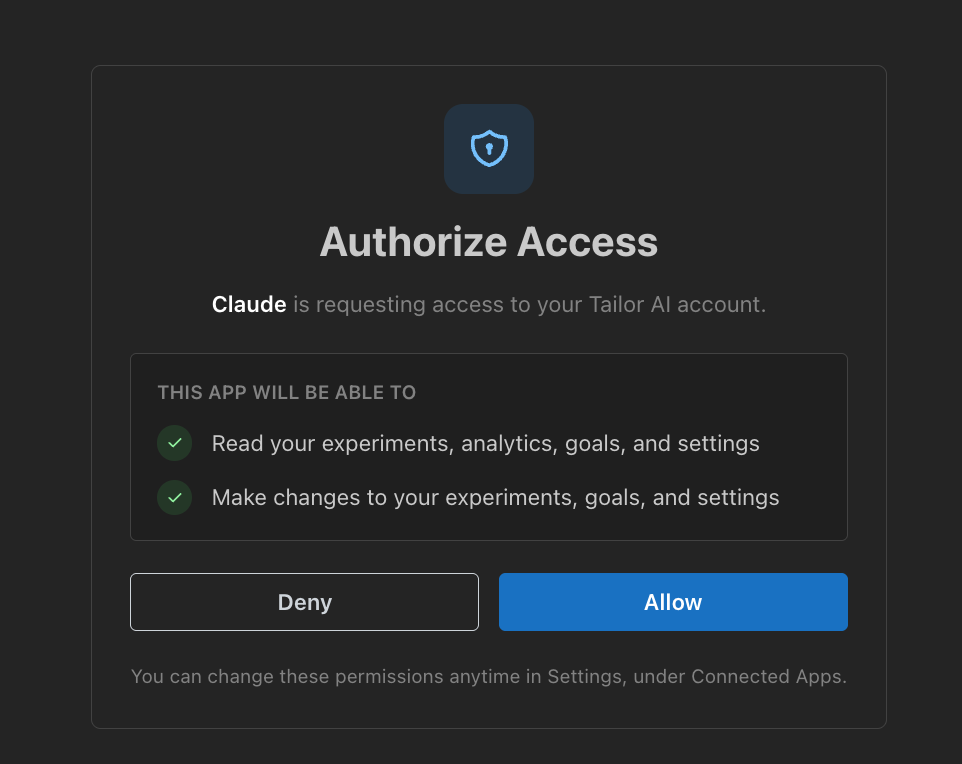
3. Authorize Claude to access your Tailor AI account. Read and Write are toggled separately in Tailor; you can tighten them later in Settings → AI Agents (MCP) & API → AI Agents (MCP).
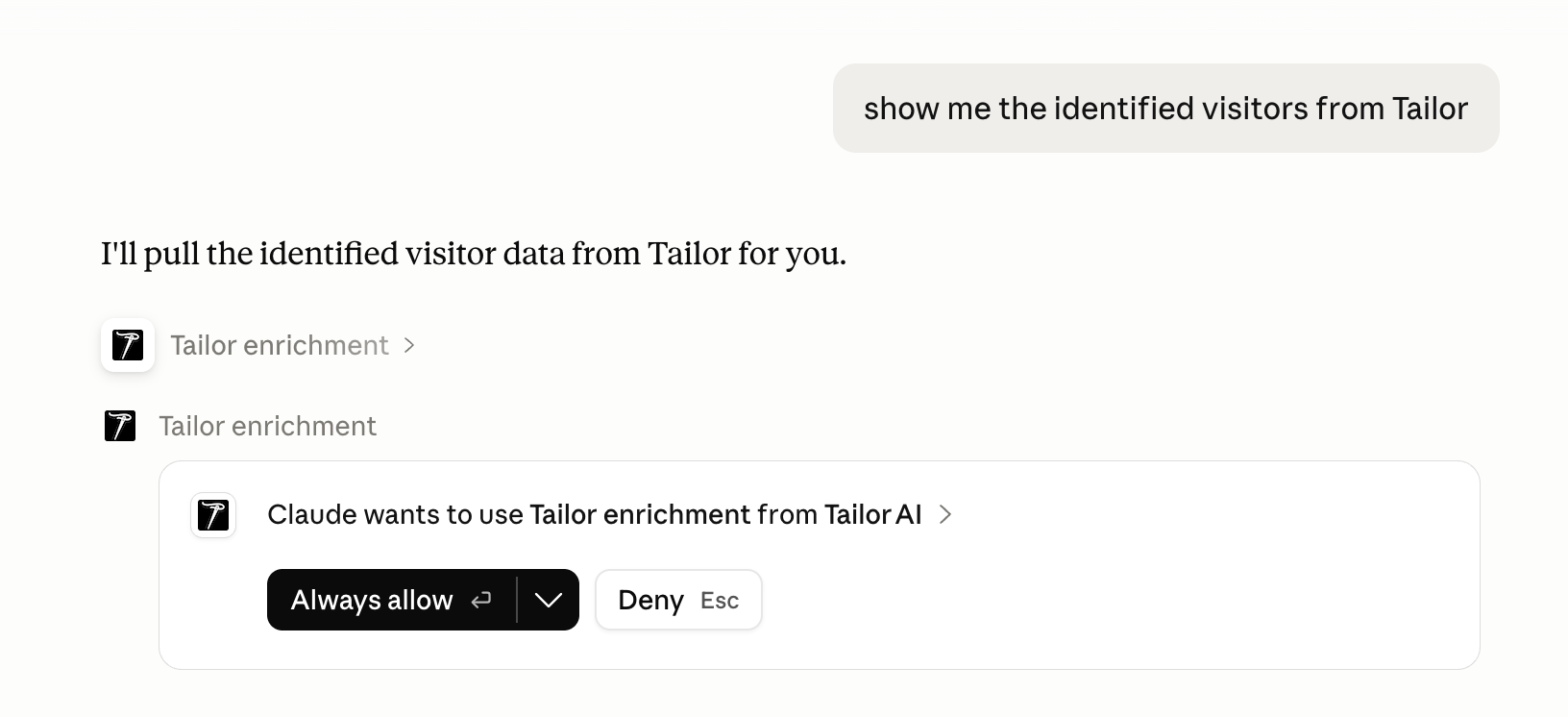
4. Done. Ask Claude something like "show me the identified visitors from Tailor". The first time Claude calls a Tailor tool, it will ask for permission.
Alternative: edit the config file directly (for API key auth)
Claude Desktop's config file only starts local servers, so a remote URL has to go through the mcp-remote bridge (requires Node.js). Open Claude Desktop → Settings → Developer → Edit Config and add:
{
  "mcpServers": {
    "tailor": {
      "command": "npx",
      "args": ["mcp-remote", "https://mcp.tailorhq.ai"]
    }
  }
}
For API key auth, add "--header", "Authorization: Bearer YOUR_API_KEY" to the args array. Restart Claude Desktop after editing.
ChatGPTDeveloper mode▶
1. Turn on Developer mode in Settings → Security and login.
2. Open Plugins and click the + button in the top right.
3. Name it Tailor, set Connection to Server URL with the URL below, set Authentication to OAuth, and tick the risk acknowledgement.
https://mcp.tailorhq.ai4. Authorize Tailor in the browser prompt. Then in a chat, click the + next to the message box and pick Tailor. That applies to the message you use it on, not the whole conversation, so pick it again when a follow-up needs fresh data.
Write actions need the Write toggle on your Tailor connection and a confirmation in ChatGPT. MCP servers are not available in Advanced Voice, so use a normal chat.
Other MCP clients▶
Any MCP-compatible client (Cursor, Windsurf, custom agents) can connect using https://mcp.tailorhq.ai with HTTP transport and either OAuth or an API key.
Step 3: Verify
Once connected, you'll see your connection with a CONNECTED status in Settings → AI Agents (MCP) & API → AI Agents (MCP). Each connection has independent Read and Write toggles.
Available tools
57 tools on a typical connection, grouped below. Click a category to see what's included.
Every tool declares whether it only reads or can also write. Read-only tools can run without a per-call confirmation in clients that support it; tools marked Write need the Write toggle on your connection and always prompt before they run. Reads and writes live in separate tools, so giving an assistant read access to something never gives it the matching write.
The exact list your client sees also depends on which Tailor features are enabled for your account, so it can differ slightly from this page. A few tools exist only inside Tailor's own agent and browser extension and never appear on an external connection.
Traffic and analytics▶
- Traffic
tailor_trafficBreakdowns by source, campaign, keyword, ad content, device, referrer, or locale, each with conversion rates - Conversions
tailor_conversionsConversion goal rates, most-clicked CTAs, and form submissions per page - Page engagement
tailor_engagementScroll depth, time on page, and frustration signals (rage clicks, dead clicks) per landing page - Page behavior
tailor_page_behaviorWhich pages converting visitors tend to view, ranked by influence on conversion - Repeat visitors
tailor_repeat_visitorsNew vs returning traffic per page, for deciding what a repeat visitor should see - Visitor journeys
tailor_visitor_journeyFull event timeline for one visitor, including every query param on each page view - Custom analytics query
tailor_queryCustom analytics queries with your own groupings, filters, and aggregations
Identified visitors▶
- Identified visitors
tailor_enrichmentCompany-level visitor data (industry, size, revenue, role, location), per page and per campaign - Account lists
tailor_account_listsWriteTarget-account lists for ABM: create, rename, delete, and add or remove companies - Enrichment usage
tailor_usageEnrichment credit usage and daily volume metrics
Tests▶
- Tests
tailor_experimentsList and view your A/B tests - Test variants
tailor_variantsInspect individual variant configurations and copy changes - Test results
tailor_metricsPer-variant performance: impressions, conversions, conversion rates - Downstream impact of a test
tailor_experiment_downstreamPer-variant breakdowns of CTAs, goals, engagement, and audience demographics for one test - Tests running on a page
tailor_experiment_conflictsWhat is actually running at a given URL, before you start something that would collide with it - Amplitude attribution
tailor_amplitudeAmplitude event analytics and cross-platform test attribution - Conversion goals
tailor_goalsList the conversion goals configured for your organization - Create and configure a test
tailor_experiment_setupWriteCreate, rename, retarget, prioritize, and delete tests, and set primary goals - Start, stop or ramp a test
tailor_experiment_actionsWriteStart, stop, ramp, or set the traffic split on a test - Manage test variants
tailor_variant_manageWriteCreate, update, duplicate, delete, or restore variants - Manage conversion goals
tailor_goal_manageWriteCreate, update, delete, or attach conversion goals, and tune CTA and engagement config
Ads platforms▶
- Google Ads performance
tailor_google_adsGoogle Ads campaigns, ad groups, ads, keywords, search terms, and landing page spend - Meta Ads performance
tailor_meta_adsMeta (Facebook/Instagram) campaigns, ad sets, and ad-level performance - LinkedIn Ads performance
tailor_linkedin_adsLinkedIn Ads campaign groups, campaigns, and creative performance - Ad account audit
tailor_ads_auditList past ad account audit runs and pull the full structured report for one
Test ideas and test health▶
- Test health alerts
tailor_recommendationsAlerts on tests that already exist: winner-ready, ready to ramp, or unhealthy - Act on a test alert
tailor_recommendation_actionsWriteAct on, dismiss, or undismiss a test alert - Test health alert settings
tailor_nbaWriteTurn the test health alert engine on or off, and toggle individual rules - Test idea changes
tailor_test_ideasThe proposed copy changes on a recommended test, before it launches - Edit a test idea
tailor_test_idea_changesWriteEdit or remove those proposed changes, to refine wording without opening the editor - Test Ideas settings
tailor_planWriteTest Ideas settings: the steering brief that guides what gets proposed, and which domains it may cover - Decisions needed
tailor_inboxDecisions needed: pending alerts, recommendations, and test issues in one list
Watchdog and alerts▶
- Watchdog
tailor_watchdogWatchdog alerts and your custom rules for ad spend and traffic anomalies - Manage Watchdog rules
tailor_watchdog_manageWriteCreate, update, and delete Watchdog rules, the thresholds that decide when you are told - Alert settings
tailor_alert_settingsWhich alerts this account receives, and which recurring emails you are subscribed to - Change alert settings
tailor_alert_settings_manageWriteSwitch alerts on or off, send a sample to prove delivery works, manage email subscriptions - Slack connection
tailor_slackSlack connection status and which channels are wired to each feature
Page tailoring▶
- Site pages
tailor_site_pagesEvery page whose URL path matches a pattern, for scoping work across a section of the site - Landing pages
tailor_landing_pagesLanding pages being tested or optimized, with test counts per page - Read a page
tailor_scrape_pageRead a page and get its tailorable elements with stable refs and a scrape token - Read a page's buttons and links
tailor_scrape_clickablesRead a page's buttons and links, each with a ref - Screenshot a page
tailor_capture_screenshotScreenshot a URL and return the image inline, so the assistant can see the layout itself - Apply changes to a variant
tailor_apply_changesWriteApply copy or element changes to a variant, by ref from a scrape - Revert a copy change
tailor_revert_copy_changeWriteRevert one applied copy change, restoring that element to its original text - Upload an image
tailor_upload_imageWriteUpload a local image and get a permanent CDN URL to use on a page - Generate an image
tailor_generate_imageWriteGenerate a marketing image and publish it to a permanent CDN URL
Hosted and managed pages▶
- Hosted pages
tailor_hosted_pageRead a hosted page, a Tailor-served clone of a real page in your brand - Create, edit and publish a hosted page
tailor_hosted_page_manageWriteClone a live URL into a hosted page, edit it, publish it, or restore an earlier version - Edit a page in your CMS
tailor_managed_pagesWriteRead and edit pages in your own CMS, where Tailor can change the source content
Competitors▶
- Competitors
tailor_competitorsTracked competitor domains and URLs, with scrape history for monitored pages - Competitor reports
tailor_competitor_reportsCompetitor change analysis and page version history
Account and workspace▶
- Dashboard summary
tailor_dashboardHigh-level summary: active tests, pending recommendations, recent winners - Organization settings
tailor_organizationOrganization details: Slack, enrichment, analytics providers, and your brand guideline - Change organization settings
tailor_organization_manageWriteSet the org-wide brand guideline, the tone and voice the agent writes copy against - Suggested questions
tailor_suggested_questionsContext-aware starter prompts per dashboard surface
Guidance▶
- Conversion playbook
tailor_cro_best_practicesA playbook of researched CRO test ideas, each a rule with the evidence behind it - Tailor help
tailor_helpSearch Tailor's own help documentation from inside your assistant
Example prompts
Try these in Claude, Claude Code, ChatGPT, or any MCP-connected assistant.
Review experiment results
"Review all active experiments. For each one, show me the variant performance, conversion rates, and whether Tailor has a recommendation to ramp or stop."
Tools: tailor_experiments, tailor_metrics, tailor_recommendations
Full-funnel data analysis
"Compare Google Ads and Meta Ads performance for the last 30 days. Show me spend, landing page traffic, and downstream Amplitude conversions. Which campaigns have the best cost per qualified conversion?"
Tools: tailor_google_ads, tailor_meta_ads, tailor_traffic, tailor_amplitude
Identify and qualify enterprise visitors
"Pull identified visitors from /enterprise and /contact-sales for the last 7 days. Filter to enterprise companies in software or financial services. Score by engagement and show company name, industry, size, and visitor role. Rank by fit."
Tools: tailor_enrichment, tailor_engagement, tailor_query
Monitor performance and catch issues
"Check if there are any Watchdog alerts or inbox items I should look at. If there are traffic anomalies, dig into which campaigns or sources are affected."
Tools: tailor_watchdog, tailor_inbox, tailor_traffic
Match a landing page to the ad that drove the click
"For /pricing, show the top paid campaigns and keywords from the last 30 days. Scrape the page, then propose headline and subhead changes that match what the highest-spend campaign promises, and apply them to a new variant."
Tools: tailor_traffic, tailor_scrape_page, tailor_apply_changes
Dig into how an experiment shifted behavior
"For our pricing-page-headline experiment, break down per-variant performance across all conversion goals, and show how audience demographics differ between variants."
Tools: tailor_experiment_downstream, tailor_metrics
Competitive intelligence
"Show me recent changes to competitor landing pages. What messaging or positioning shifts should I know about?"
Tools: tailor_competitors, tailor_competitor_reports
Building agentic workflows
Beyond interactive use, you can embed Tailor's MCP tools into automated pipelines using any MCP client library with an API key. Some ideas:
Weekly experiment digest
Pull active experiment results and pending recommendations, post a summary to Slack with suggested next actions.
Lead qualification pipeline
Pull identified visitors from high-intent pages daily, filter by ICP criteria, score by engagement, push qualified leads to CRM or Slack.
Cross-platform performance report
Combine Google Ads spend, Tailor site traffic, and Amplitude downstream conversions into a unified cost-per-conversion report.
Automated experiment management
Monitor results daily. When Tailor recommends ramping a winner, ramp it automatically with safety checks and Slack notifications.
REST API
MCP covers most of what an assistant or a script needs. For a plain HTTP call with no MCP client, Tailor also exposes a REST endpoint that lists the pages you are currently tailoring. Create a key under Settings → AI Agents (MCP) & API → API Access. Copy it when it is created, it is shown once, and it carries its own Read and Write permissions.
curl -X GET https://api.tailorhq.ai/v1/integrations/pages/active \
  -H "API-KEY: your_api_key" | jq
Example response and a TypeScript client
{
    "activePages": [
        {
            "name": "Young Golfers",
            "url": "https://www.vicegolf.com/collections/golf-balls?tid=fjuqjps",
            "status": "ramped"
        },
        {
            "name": "Wedges Summer Sale for Low Handicap Player",
            "url": "https://www.vicegolf.com/golf-clubs/wedges/vicegolf-vgw01-lime?utm_campaign=summer_sale",
            "status": "in_experiment"
        }
    ]
}
import axios from 'axios';
const API_URL = 'https://api.tailorhq.ai/v1/integrations/pages/active';
const { data } = await axios.get(API_URL, {
headers: { 'API-KEY': process.env.TAILOR_API_KEY },
});
console.log(JSON.stringify(data, null, 2));In Postman, set the auth type to API Key, name the header API-KEY, paste your key as the value, and send a GET to the same URL.
Permissions and safety
Each connection has independent Read and Write toggles. Destructive or irreversible write actions (deleting an experiment, variant, or goal, publishing a hosted page) require a two-step confirmation token to prevent accidental changes.
Interactive analysis
Start with Read only. Enable Write when you're ready to take actions.
Automated reporting
Read only. No risk of accidental changes.
Experiment management
Read + Write, with confirmation steps and Slack notifications in your workflow.
Troubleshooting
"Tool not found" or no tools available
Verify the connection shows as CONNECTED in Settings → AI Agents (MCP) & API → AI Agents (MCP). If not, re-run the connection command.
Write actions are rejected
Check that the Write toggle is enabled for your connection in Settings → AI Agents (MCP) & API → AI Agents (MCP).
No data returned
Most tools require a date range. Make sure you're querying dates with active traffic, and that the relevant integration (Google Ads, Meta Ads, Amplitude) is connected.