
Sending Events to Analytics Platforms
Send Tailor experiment data to Amplitude, Google Analytics, Segment, and other analytics platforms
Overview
Tailor can send experiment events (variant exposure, experiment and variant IDs, conversion events) to your analytics platforms so you can track performance and build funnels in your existing workflow. There are two ways to set this up: the toggle-based approach (recommended) or a manual callback for advanced use cases.
Toggle-Based Setup (Recommended)
The easiest way to send experiment events to your analytics platform. No code required. Just flip a toggle in your Tailor settings.
- Go to Settings → Analytics
- Under Analytics Connections, toggle on the platforms you use (Amplitude, Google Analytics, or Segment)
Requirement: Your analytics provider script (e.g., Amplitude SDK, GA4 tag, Segment snippet) must already be installed on pages where the Tailor script is installed.
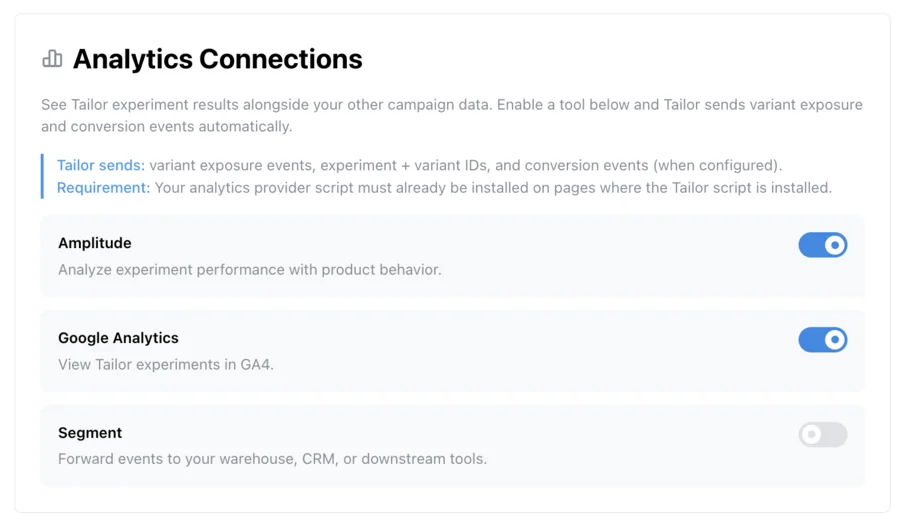
Once enabled, Tailor automatically sends experiment data to the selected platforms. No callback code needed.
Manual Callback Integration (Advanced)
Most customers use the toggle-based setup above and don't need this section. The manual callback is for teams that need custom event formatting or want to send to unsupported platforms.
If you need full control over event formatting or want to send to a platform not listed above, you can configure a custom callback in the Tailor init script. Choose your analytics platform below to see the implementation code:
<!-- Begin Tailor AI Script -->
<script src="YOUR TAILOR SCRIPT HERE" async></script>
<script id="tailor-init-script">
  (window.TailorQueue || (window.TailorQueue = [])).push(function() {
    Tailor.init({
      analyticsProvider: 'amplitude',
      experimentInitCallback: function (tailorEvent) {
        amplitude.track('tailor_experiment', {
          experimentId: tailorEvent.experimentId, // Unique ID for each experiment
          experimentGroup: tailorEvent.experimentGroup, // 'control' or 'treatment' (Previous key 'treatment' still supported)
          rampStage: tailorEvent.rampStage, // Values are 'in_experiment' or 'fully_ramped'
          rampPercentage: tailorEvent.rampPercentage // Range is 0-100
        });
      }
    });
  });
</script>
<!-- End Tailor AI Script -->
Available Event Properties
Whether you use the toggle or the manual callback, Tailor sends a tailorEvent object with the following properties:
| Property | Type | Description |
|---|---|---|
| experimentId | string | Unique ID for each experiment |
| experimentGroup | string | Either "control" or "treatment" (replaces deprecated "treatment" property) |
| rampStage | string | Either "in_experiment" or "fully_ramped" - indicates the experiment phase |
| rampPercentage | number | Percentage of traffic included in the experiment (0-100) |
Example Funnel Analysis (in Amplitude)
Once your Tailor AI experiments are sending events to Amplitude, you can create funnel analyses to track conversion rates between your control and treatment groups. Here's an example of a funnel analysis comparing experiment variants:
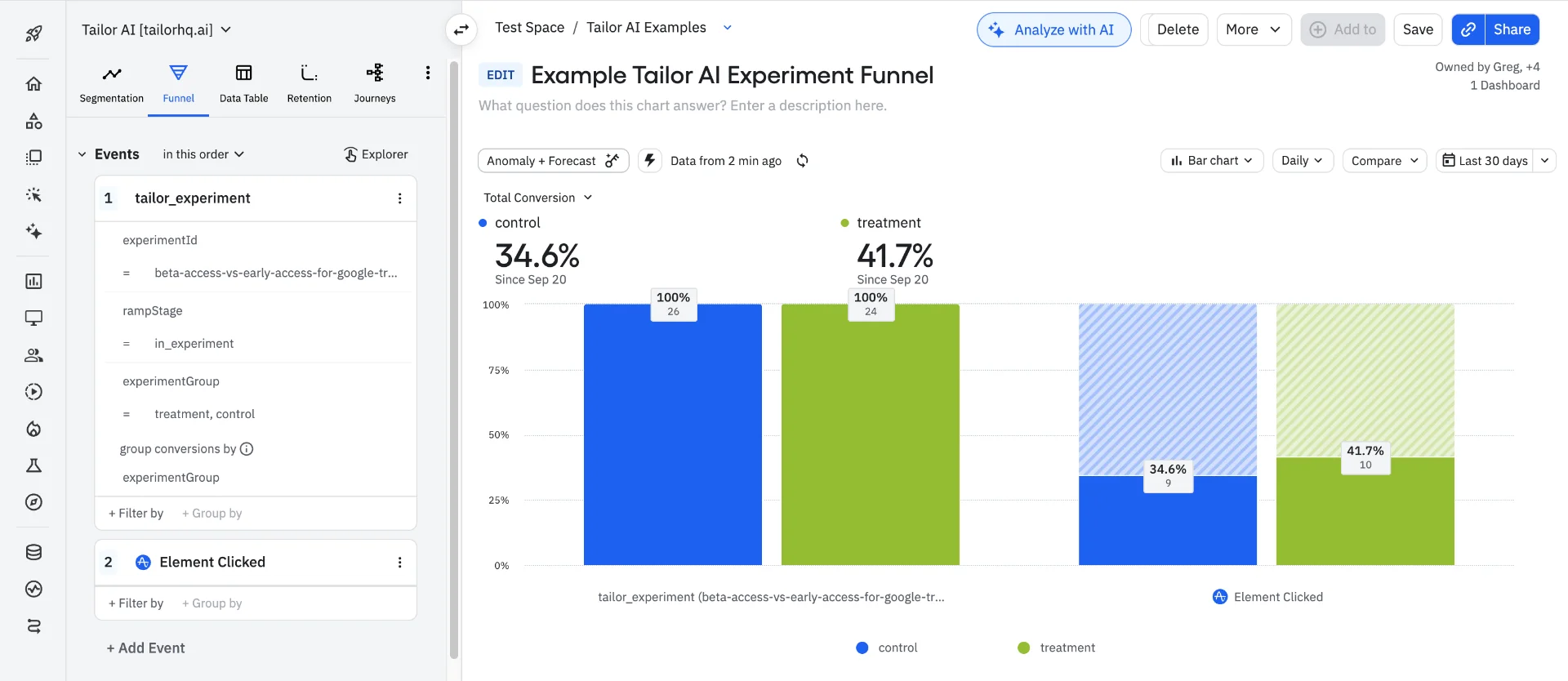
Key setup steps in Amplitude:
- Navigate to the "Funnel" analysis type
- Add the
tailor_experimentevent as your first step - Filter by
experimentIdto select your specific experiment - Group by
experimentGroupproperty (shows "treatment" and "control") - Add your conversion event(s) as subsequent steps (e.g., "Element Clicked", "Form Submitted")
- Analyze the conversion rate differences between variants
Pro tip: Use the rampStage property to filter for users in the "in_experiment" stage to ensure you're only analyzing users who were actually exposed to your experiment.
Custom Event Names
When using the manual callback, you can customize the event name by changing 'tailor_experiment'to any name that fits your analytics naming convention. For example:
ab_testexperiment_startedtailor_split_test
Troubleshooting
Toggle-based setup: If you're using the toggle-based setup and events aren't appearing, verify your analytics provider is installed on the same pages as Tailor.
If you're using the manual callback and encounter issues, verify that:
- Your analytics platform is properly initialized
- The tracking function names match your platform's API
- No errors appear in the browser console related to analytics
- Events appear in your analytics platform's real-time or debug view