
Account Lists
Define which companies matter, then use those lists across alerts and experiments.
What Are Account Lists?
An account list is a named group of companies you want to track or target. Add companies by domain or name, or import them from a CSV. Once created, you can use a list in three places:
- Slack alerts: get pinged when someone from a company on your list lands on your site, in real time or as a morning digest
- Identified Visitors analytics (filter your visitor analytics to companies on your list so reporting stays focused on accounts that matter)
- Experiment targeting: show tailored pages only to visitors from companies on your list
Create a List
Go to Account Lists
Open Settings > Visitor Intelligence > Account Lists and click Create List.
Name Your List
Give your list a name (e.g. "Tier-1 Pipeline", "Enterprise Prospects") and an optional description.
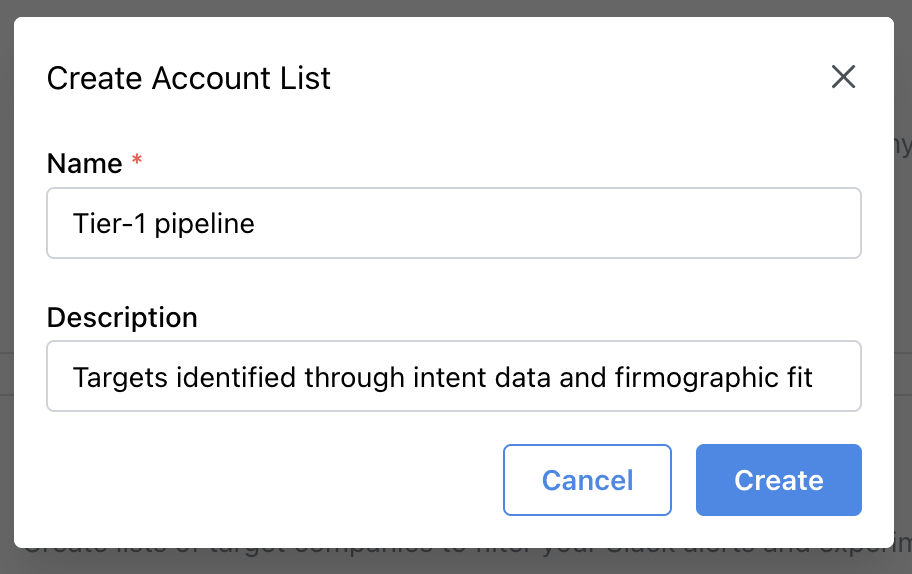
Add Companies
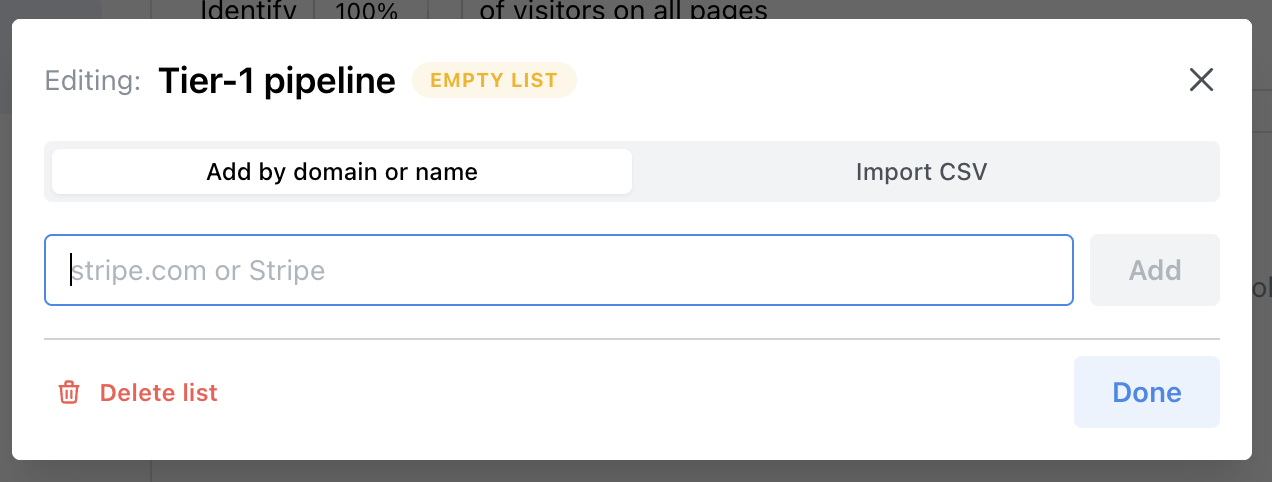
Add companies one at a time by typing a domain or company name, or switch to the Import CSV tab to upload in bulk.
Add by domain or name
Import CSV
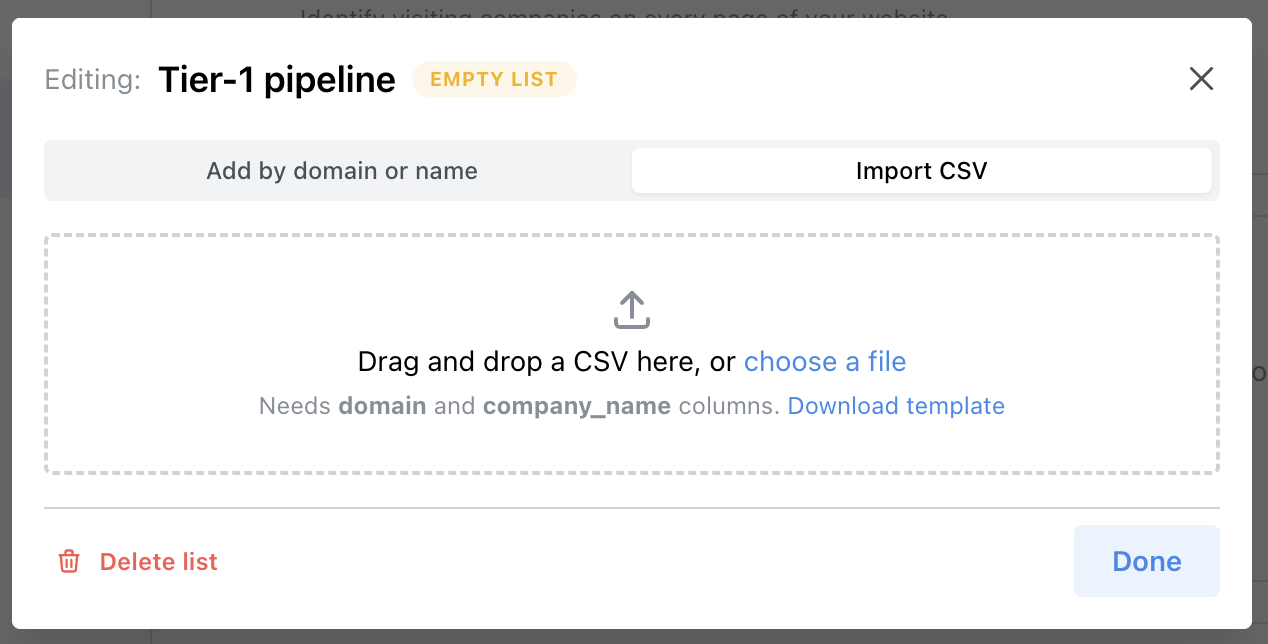
CSV format: Your file needs domain and company_name columns. A template is available in the import dialog.
Manage Your Lists
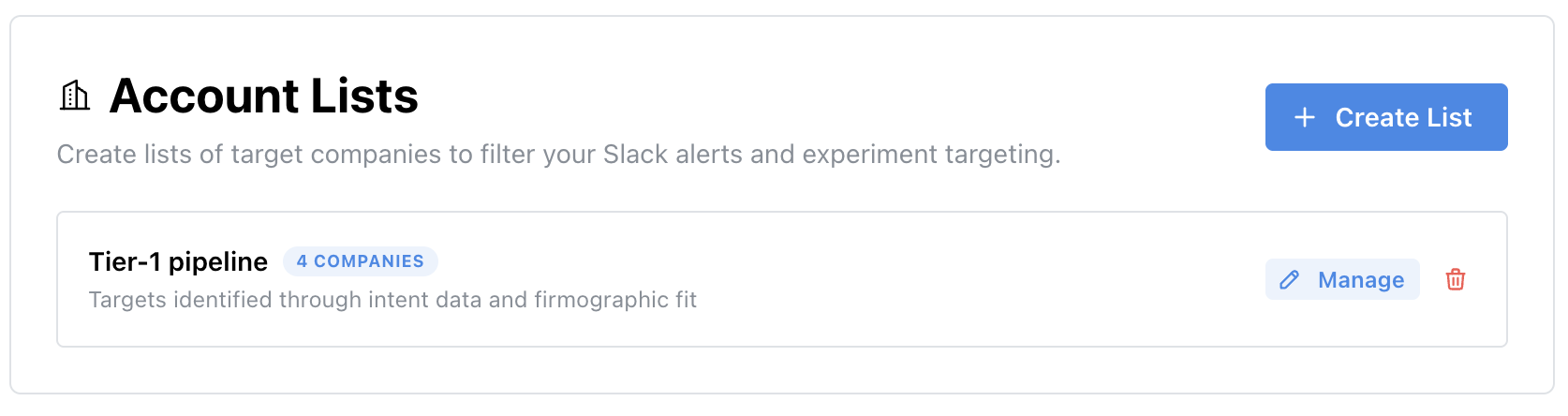
Created lists appear in your Account Lists settings. Each list shows the number of companies it contains. Click Manage to add or remove companies, or re-import a CSV at any time.
Get Slack Alerts for Target Accounts
Know the moment a target account hits your site
Alerts are attached to a saved segment on the Identified Visitors dashboard, and a segment is just a set of filters you named. So the way to alert on a target list is: filter by your account list, save that as a segment, then turn on alerts for it. The alert inherits the segment's filters, so only visits from companies on your list will ping the channel.
Before you start: you need somewhere in Slack for the alerts to land, and there are two ways to get it. Either connect your own workspace under Settings > Notifications, or ask us to set up a shared channel with you. Connecting your own workspace lets you send alerts to any channel in it. A shared channel works without you installing anything, so it is the faster option if a Slack install needs IT approval on your side.
You also need visitor identification turned on, since alerts fire off identified company visits. See the Visitor Identification guide.
Filter to your list
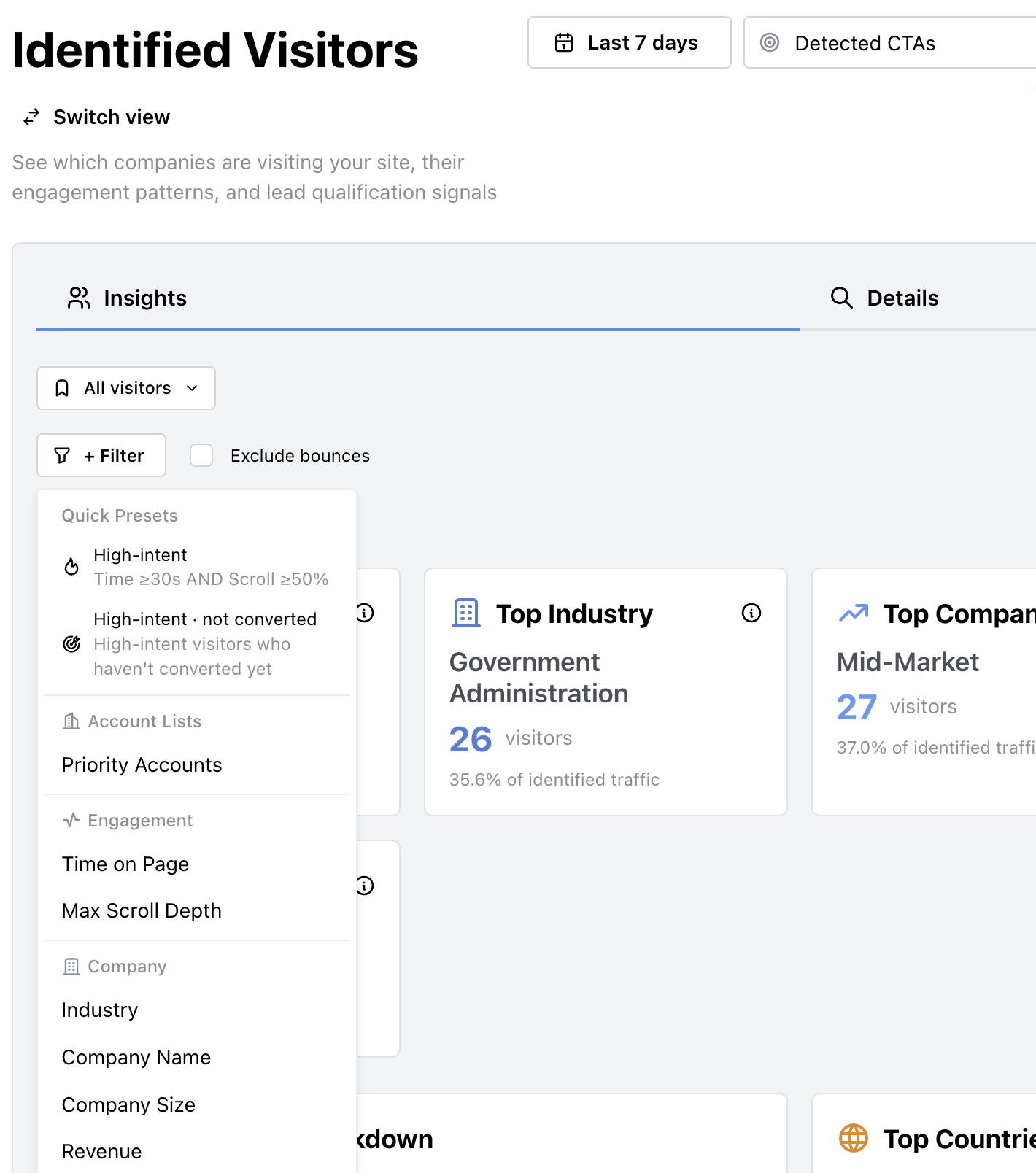
Open Analytics > Identified Visitors, click + Filter, and pick your list under Account Lists.
Save it as a segment
Click Save as segment and give it a name (for example, "Target Accounts"). Add other filters first if you want a tighter trigger. A common pairing is your account list plus the High-intent preset, so you only get pinged when someone from a target company actually reads the page.
Turn on alerts and pick a channel
With the segment loaded, open its alert settings from the Slack button on the filter bar, or from Segments > Manage segments > the row's ⋯ menu. The Send alerts to picker lists your own workspace channels under Your Slack and any shared channels under Channels Tailor set up for you, so pick one and switch on the alerts you want. The same settings are editable later under Settings > Notifications, where every audience is listed together.
Real-time alerts
Posted the moment a visitor matches. Best for a small, high-signal list like named target accounts.
Morning digest
A roundup of everyone who matched, delivered at 8:00 AM in your account's notification time zone. Choose every weekday or Mondays only. Good for broader lists where real-time would be noisy.
Mention on new visitors
Optionally add @channel or @here to real-time alerts so the room actually gets notified.
Skip repeat visitors
Only alert on first-time visitors. Cuts noise when the same account browses often.
What the alert looks like
Each real-time alert names the company and domain, then adds whatever Tailor could identify:
- Industry, employee count, and revenue band
- Probable job function and seniority
- How they arrived: channel, source, campaign, and keyword
- The landing page they hit, plus a View Timeline button for the full visit
Full details post as a reply in the thread, so the channel stays scannable.
Test it before you rely on it: the alert editor has Send test alert and Send test digest buttons, so you can confirm routing and formatting without waiting for real traffic.
Good to know
- The same company will not re-alert within 24 hours, so a busy account cannot flood the channel.
- Each segment has its own channel and its own settings. Run one segment for target accounts into a sales channel and another, broader one into a marketing channel.
- Editing the list later updates the alerts automatically. There is nothing to re-save on the segment.
- Identification is company-level, not person-level. Tailor tells you a company visited, not which individual.
Filter Visitor Intelligence Analytics
Filter Identified Visitors by Account List
Apply an account list as a filter on the Identified Visitors dashboard to narrow your analytics to only the companies on your list. Top industries, company sizes, engagement, and conversion breakdowns all update to reflect just those accounts, so you can measure traffic, engagement, and CTA performance for the segments you care about.
Go to Analytics > Identified Visitors, open the + Filter dropdown, and choose a list under Account Lists. The dashboard refilters to visitors from companies on that list.
Use with Experiment Targeting
Target Experiments to Specific Accounts
When running an ABM campaign or testing messaging for a specific set of prospects, you can restrict an experiment so only visitors from companies on your list see the tailored page.
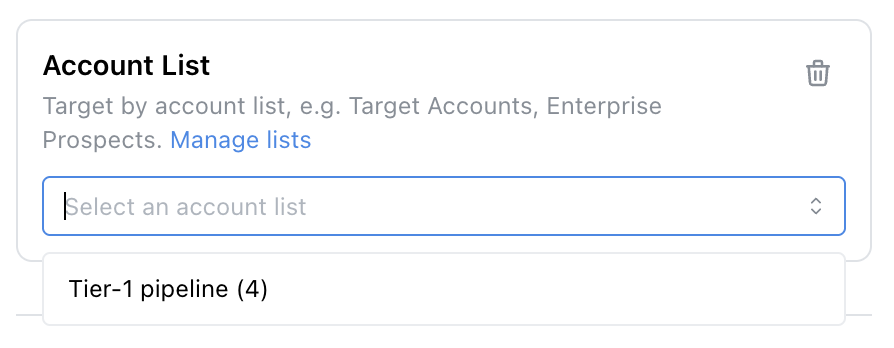
In the Chrome Extension, open Additional targeting in your ramp & test settings. Under Company & Buyer Signals, select Account List and choose your list.
Related Guides
Need help? Reach out at support [at] tailorhq [dot] ai. We're happy to assist with setup.