
API for Listing Tailored Pages
Learn how to integrate with Tailor AI's API to programmatically access your tailored pages
This guide is for developers integrating Tailor's API programmatically. Marketers don't need the API to use Tailor. Everything works through the Chrome extension and dashboard with no code required.
Step 1: Access Settings Page
Navigate to the settings page from the Tailor AI extension menu
Extension Menu:
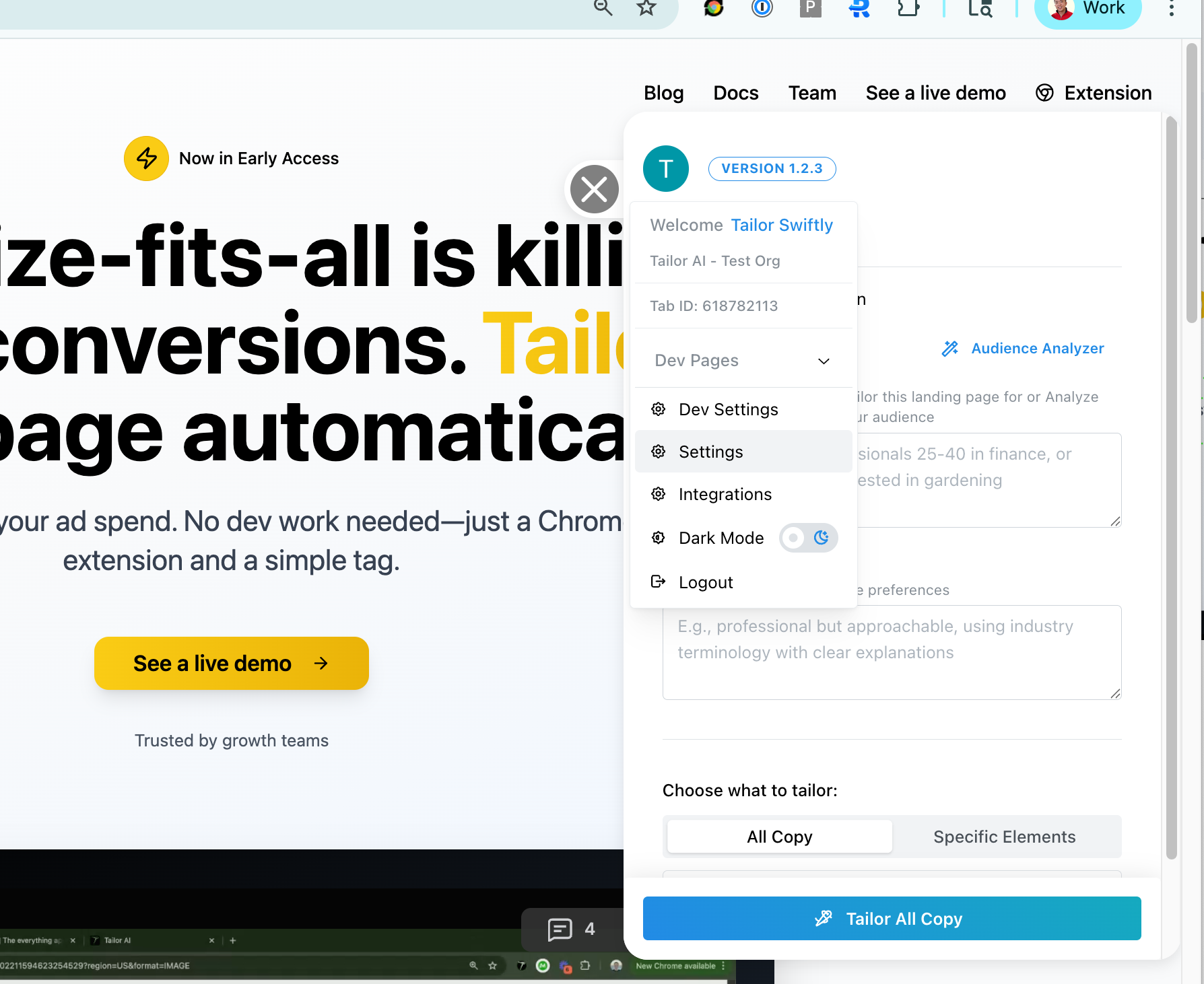
Click on the "Settings" option in the Tailor AI extension menu to access the settings page.
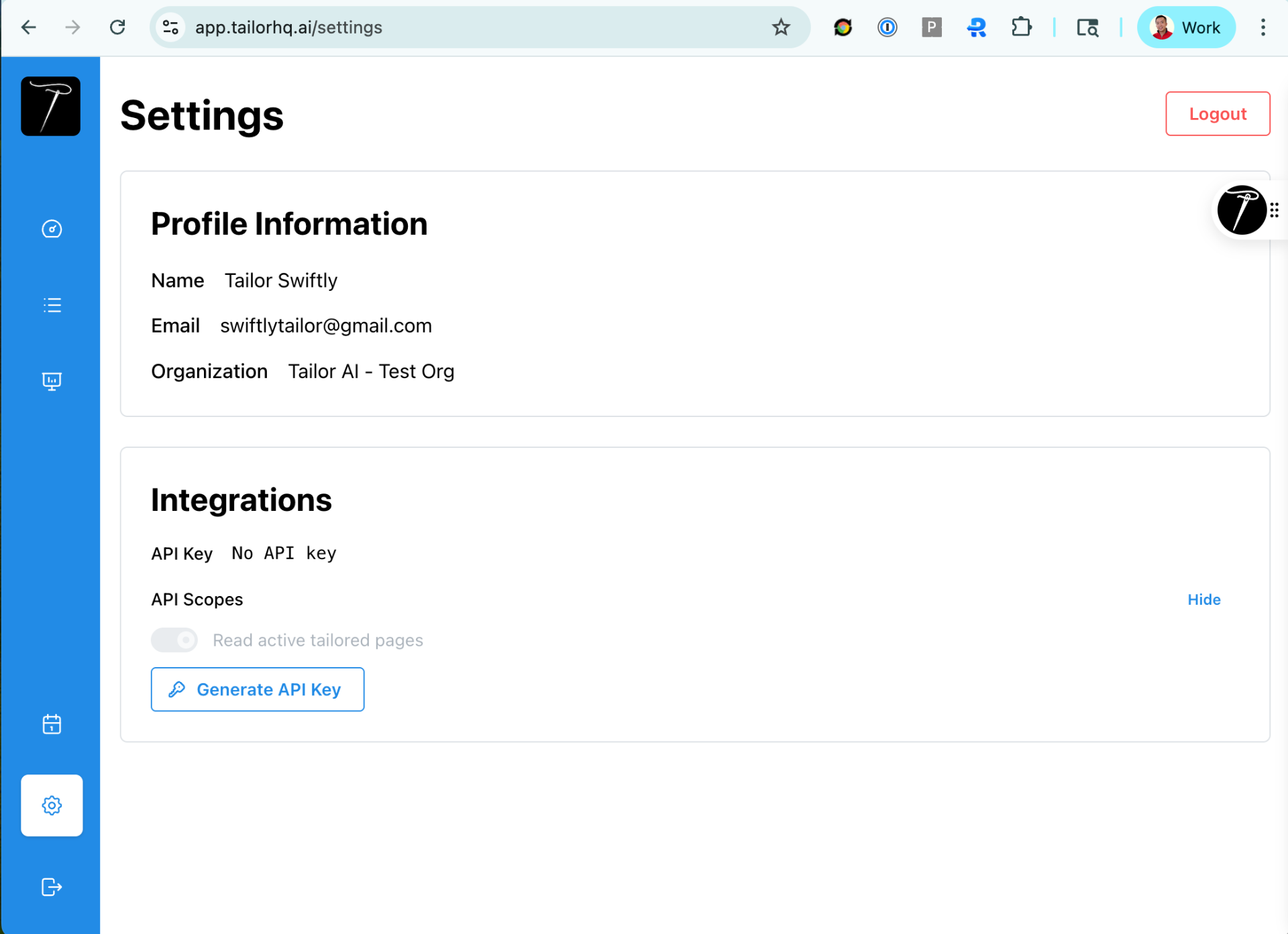
Alternative: You can also access the settings page directly at https://app.tailorhq.ai/settings
Step 2: Generate API Key
Create and copy your API key for authentication
Settings Page - Generate API Key:
Active API Key:
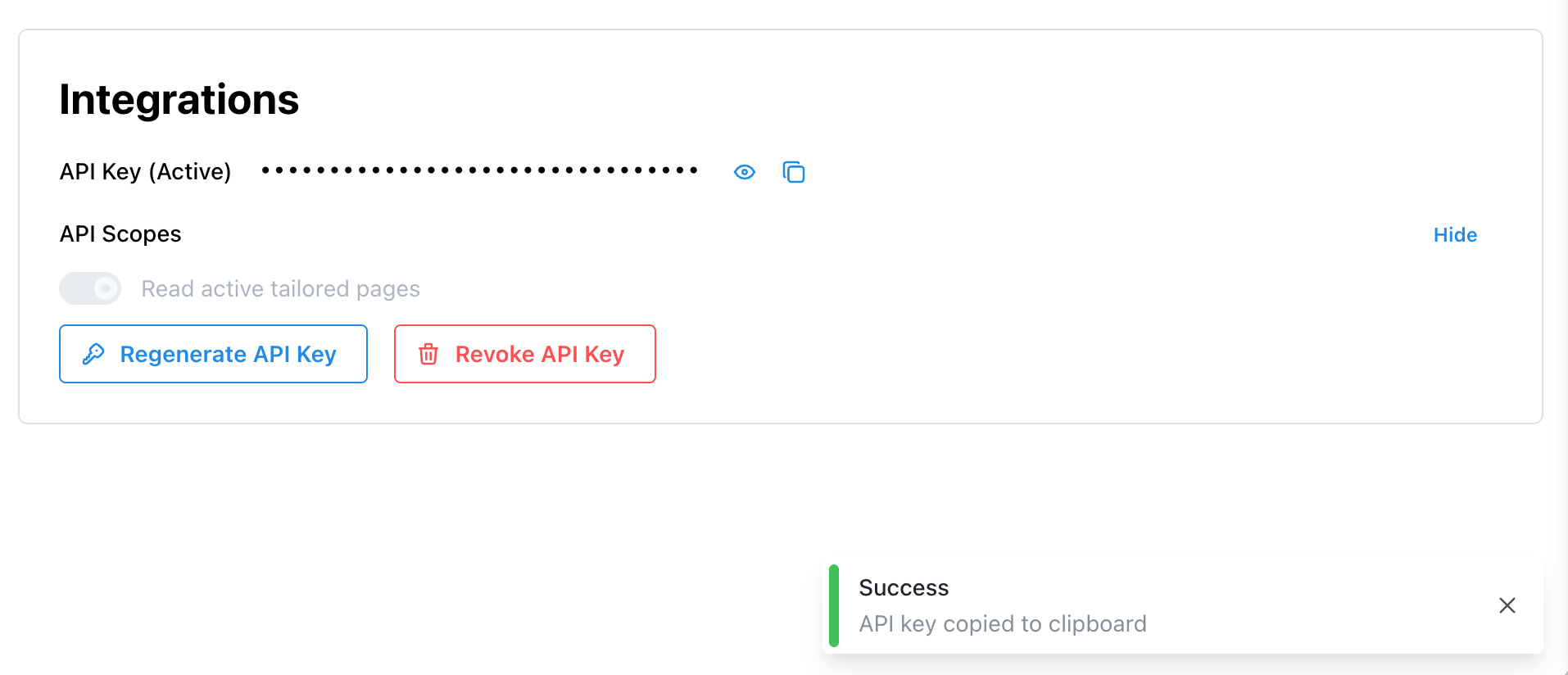
Once generated, copy the API key to your clipboard for use in API requests.
Step 3: Testing the API Key with Postman
Example of making API calls using Postman
Postman Configuration:
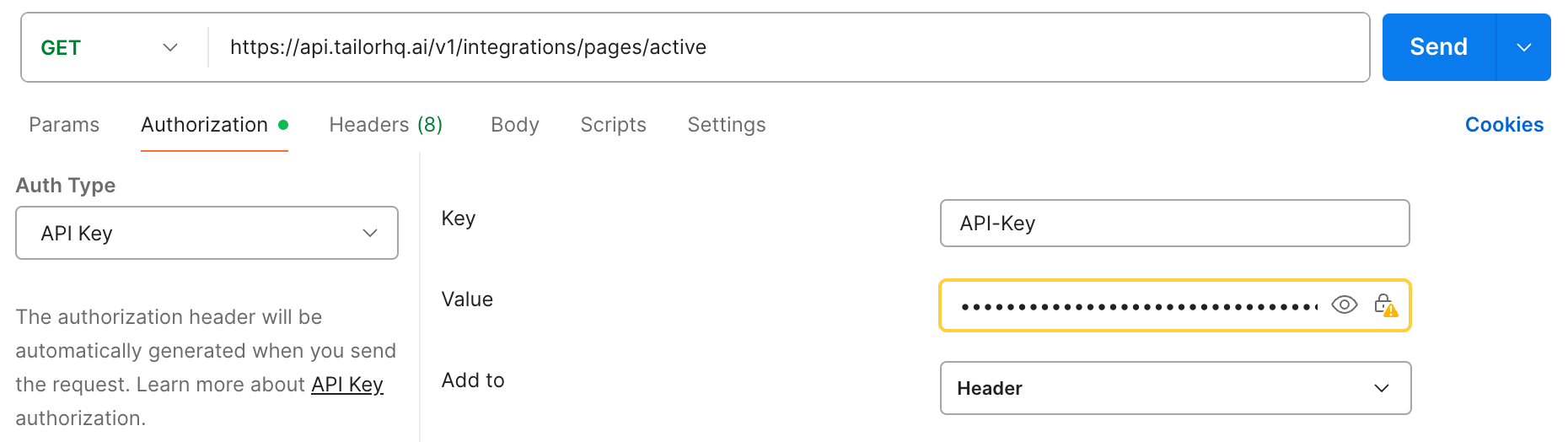
- Change Auth type to API Key
- Paste API Key from clipboard into the Value field
- Paste URL:
https://api.tailorhq.ai/v1/integrations/pages/active - Change HTTP method to GET
- Click Send button to get JSON response
Example Response:
{
    "activePages": [
        {
            "name": "Young Golfers",
            "url": "https://www.vicegolf.com/collections/golf-balls?tid=fjuqjps",
            "status": "ramped"
        },
        {
            "name": "Wedges Summer Sale for Low Handicap Player",
            "url": "https://www.vicegolf.com/golf-clubs/wedges/vicegolf-vgw01-lime?utm_campaign=summer_sale&utm_term=low_handicap_wedges",
            "status": "in_experiment"
        },
        {
            "name": "Enterprise Ball Customization - Goldman Sachs",
            "url": "https://www.vicegolf.com/golf-balls-customization/gs",
            "status": "in_experiment"
        }
    ]
}
Step 4: Testing the API Key with Curl Command
Alternative method using curl command line tool
You can also use curl to make API requests from the command line:
Curl Command:
curl -v -X GET https://api.tailorhq.ai/v1/integrations/pages/active \
  -H "API-KEY: ***************************" | jq
-v: Verbose output showing request/response headers
-X GET: Specify HTTP method
-H "API-KEY: ...": Add API key header
| jq: Pretty-print JSON response (requires jq to be installed)
Example: TypeScript Implementation
Complete TypeScript example using axios and environment variables
Here's a complete TypeScript example that demonstrates how to fetch active pages using the API:
import axios from 'axios';
import dotenv from 'dotenv';

dotenv.config();

const API_KEY = process.env.TAILOR_API_KEY;
const API_URL = 'https://api.tailorhq.ai/v1/integrations/pages/active';

async function getActivePages(): Promise<void> {
  if (!API_KEY) {
    console.error('Missing TAILOR_API_KEY in .env file');
    return;
  }

  try {
    const response = await axios.get(API_URL, {
      headers: {
        'API-KEY': API_KEY,
        'Content-Type': 'application/json'
      }
    });

    console.log(JSON.stringify(response.data, null, 2));
  } catch (error: any) {
    console.error('Failed to fetch active pages:', error.response?.data || error.message);
  }
}

getActivePages();
Requirements:
- Install dependencies:
npm install axios dotenv - Create a
.envfile with your API key:TAILOR_API_KEY=your_api_key_here - Run the script:
npx ts-node get-active-pages.ts