
Copy Tailored Pages
Learn how to copy existing tailored pages from one URL to another, including across different domains and environments
Overview
This feature allows you to copy existing changes (copy, images, CTAs, etc.) already made on one URL to a different URL
The copy feature is particularly useful for:
- Moving changes between development, staging, and production environments
- Replicating successful page optimizations across different URLs
- Supporting cross-domain deployments
- Saving time by avoiding manual recreation of changes
Step 1: Access Copy Feature
Navigate to the copy feature in the extension
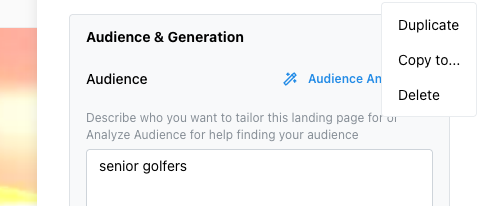
Open a tailored page from the extension UI, and select "Copy to..." from the hamburger menu.
Extension Interface - More Options Panel
Step 2: Copy to Single URL
Copy your tailored page to a single destination URL
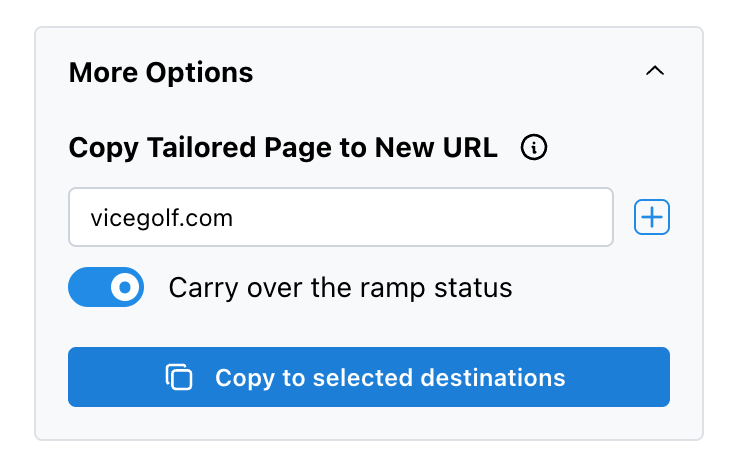
For copying to a single URL, simply input the new URL and click "Copy to selected destinations".
Copy Interface
Step 3: Copy to Multiple URLs
Add multiple destination URLs for bulk copying
To copy to multiple URLs, add more destinations using the input box and the plus icon or Enter key. Then click "Copy to selected destination" button to start the process.
Multiple Destinations
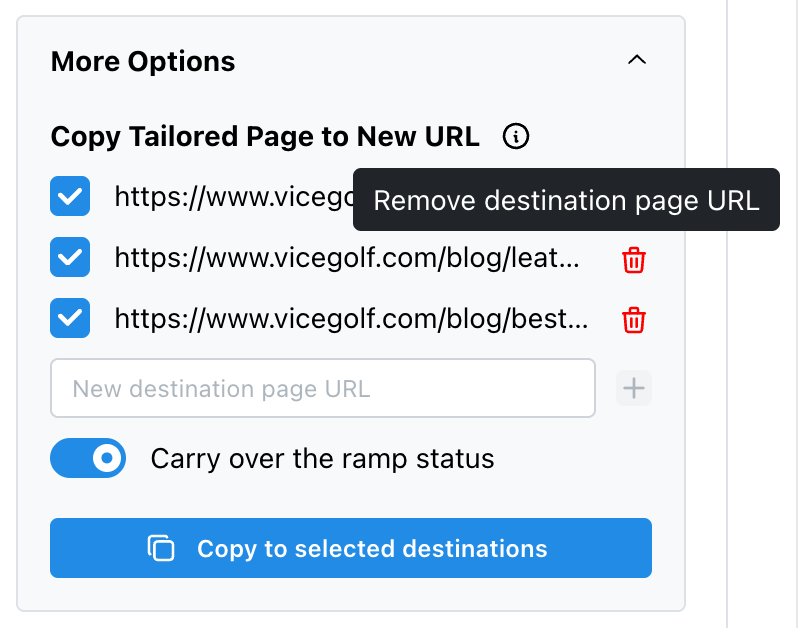
You can always delete previously added destination URLs using the delete button next to each URL.
Copying to Pages That Already Have Variants
What happens when destination URLs already have variant configurations
If the destination URL already has a variant configuration, a dialog will appear asking for confirmation. This replaces the variant configuration, not the live page itself.
Replace Confirmation Dialog
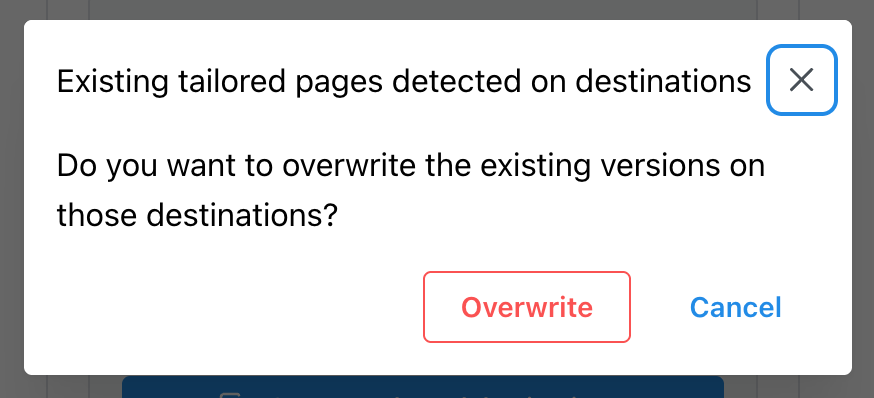
Confirming will replace the existing variant configuration on those destination URLs. Your live page content is not affected until you publish.