
Amplitude Sync for Downstream Conversions
Sync Amplitude events into Tailor to measure how experiments impact downstream conversions like purchases, signups, and pipeline.
Overview
Connect Amplitude as a second source of truth by pulling events back into Tailor. This lets you use deeper funnel events (purchases, signups, pipeline conversions) as experiment goals, so you can measure how page changes affect downstream outcomes, not just clicks.
Step 1: Generate Amplitude API credentials
You'll need an API Key and Secret Key from your Amplitude project.
API Key
- In Amplitude, go to Organization Settings → Projects
- Select the correct project
- Click API Key → Manage → Generate API Key
- Name it
Tailor AI integration - Click Create API Key and copy the Key Value
Secret Key
- In Amplitude, go to Organization Settings → Projects
- Select the correct project
- Find Secret Key
- Click Show and copy the value
Step 2: Connect Amplitude in Tailor
Enter your credentials in the Tailor settings to complete the connection.
- Go to Settings → Analytics → Amplitude Data Sync
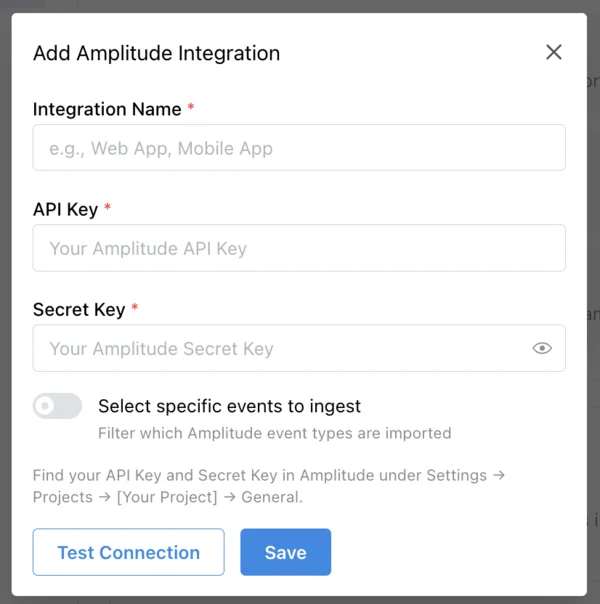
- Click + Add to open the integration form
- Enter an Integration Name, your API Key, and Secret Key
- Optionally toggle Select specific events to ingest to filter which event types are imported
- Click Test Connection to verify, then Save
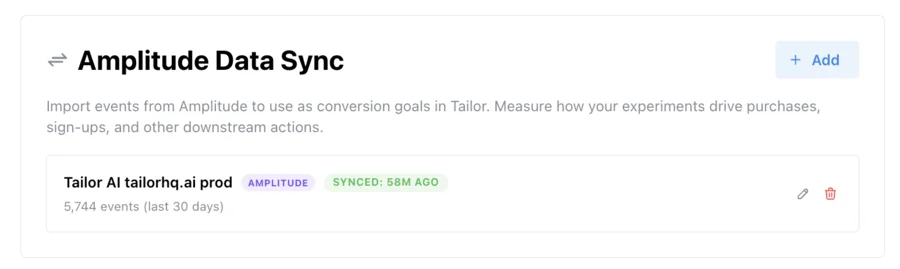
Once connected, the Amplitude Data Sync panel shows your integration status, sync recency, and event count.
Step 3: Select events to use as goals
Once connected, Tailor pulls in your Amplitude events so you can use them as conversion goals for experiments. Here's how to set up a goal from an Amplitude event.
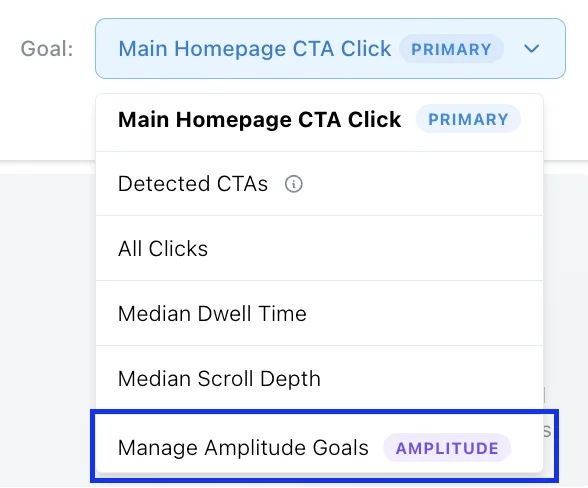
Open the goal manager
In the experiment Goal dropdown, select Manage Amplitude Goals at the bottom of the list.
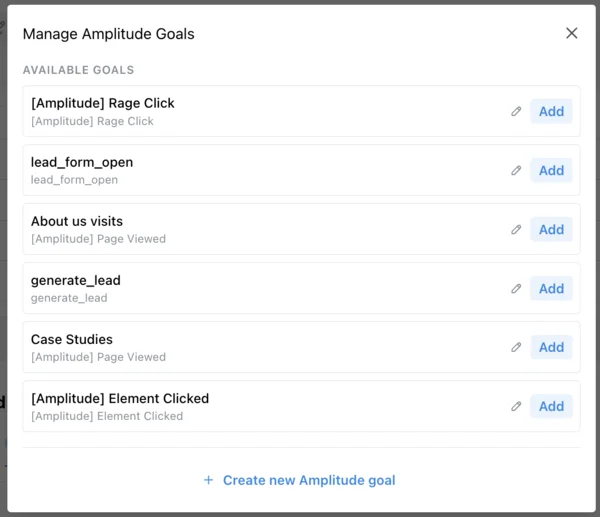
Browse or create goals
The goal manager shows your available Amplitude goals. You can add an existing goal to your experiment or create a new one.
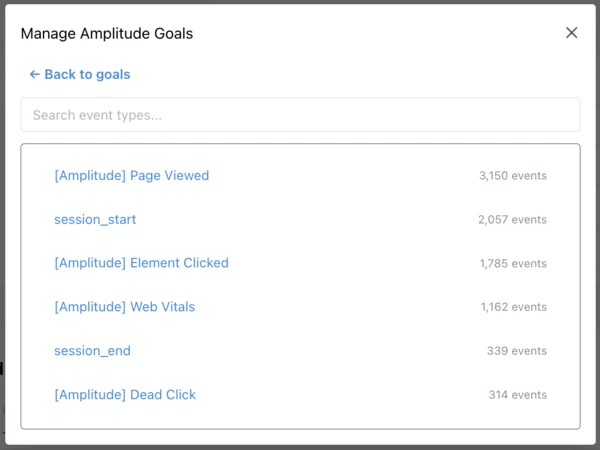
Pick an event type
When creating a new goal, pick from your synced Amplitude events. Each event shows its frequency so you can gauge volume.
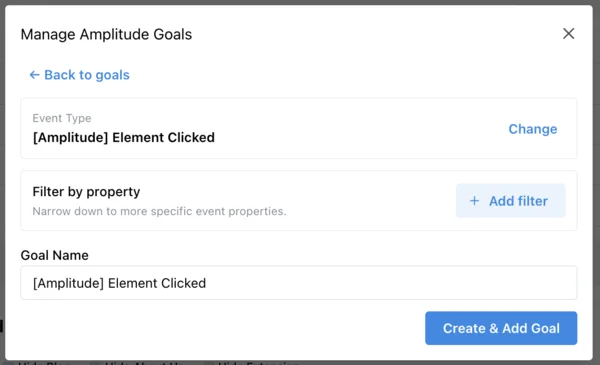
Configure and save the goal
Give the goal a name, optionally add property filters to narrow it down, then click Create & Add Goal.
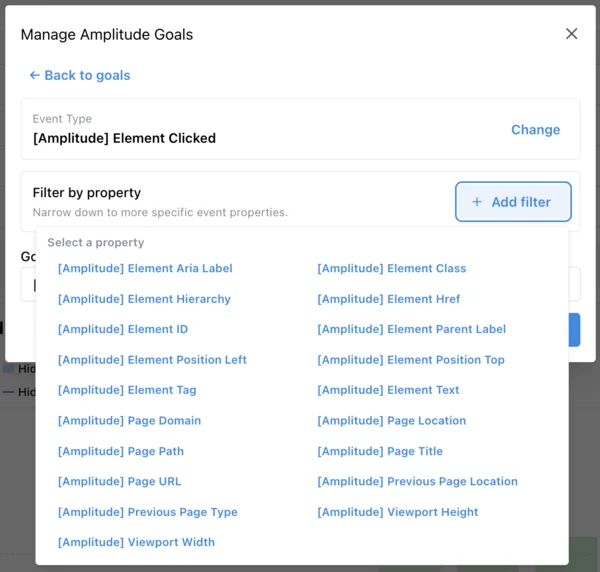
Filter by event properties (optional)
Need more precision? Add property filters to target specific elements, pages, or behaviors. For example, filter "Element Clicked" by a specific element ID or page path.
Need help? Our team can walk you through setting up your Amplitude credentials and selecting the right events. Reach out to us and we'll get it configured together.