Alt Text Editing
Learn how to edit, generate, and manage alt text for images in your tailored pages
Modifying Alt Text of Existing Images
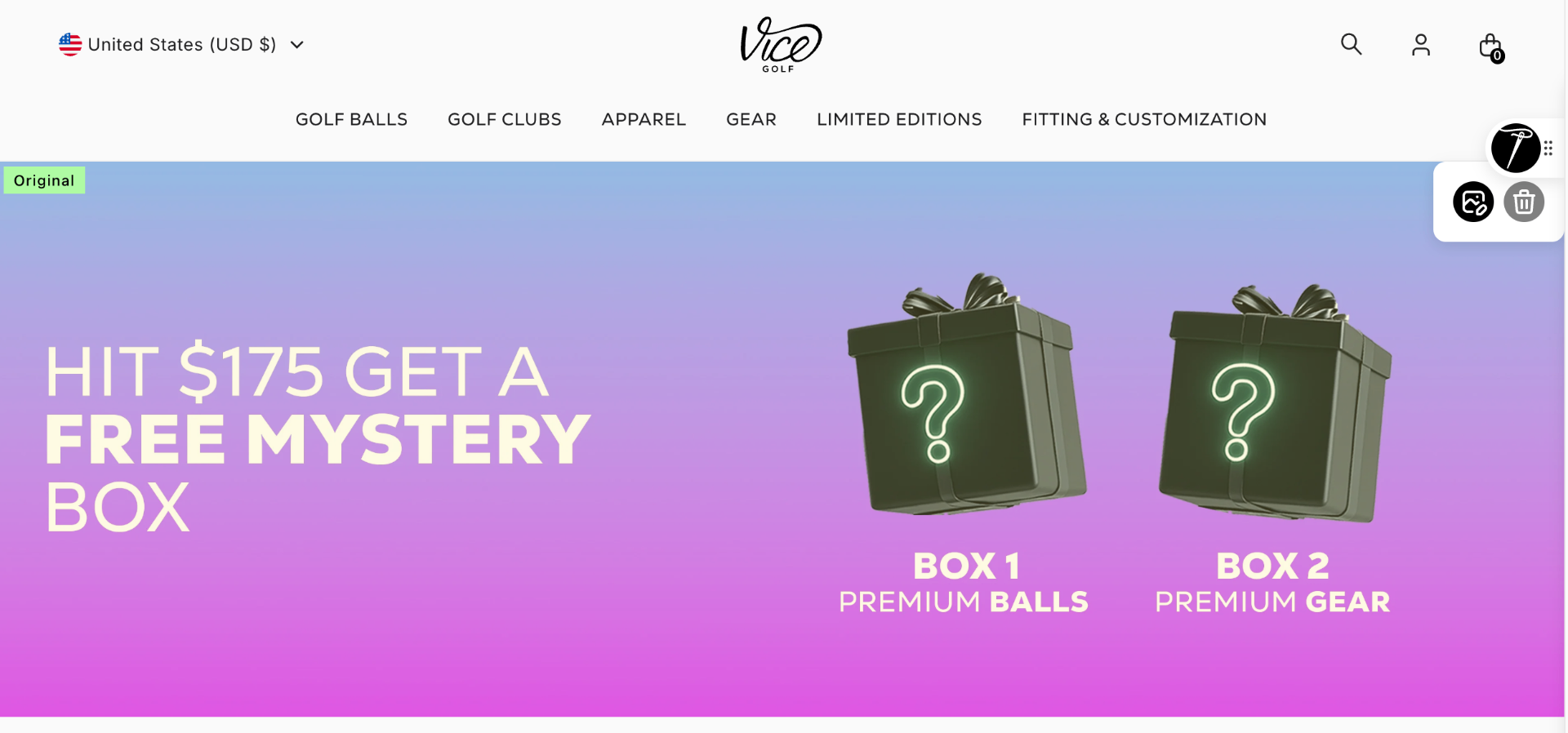
Edit alt text for images already on your page
Hover over an image and click the edit button
You can directly edit Alt Text in the popup
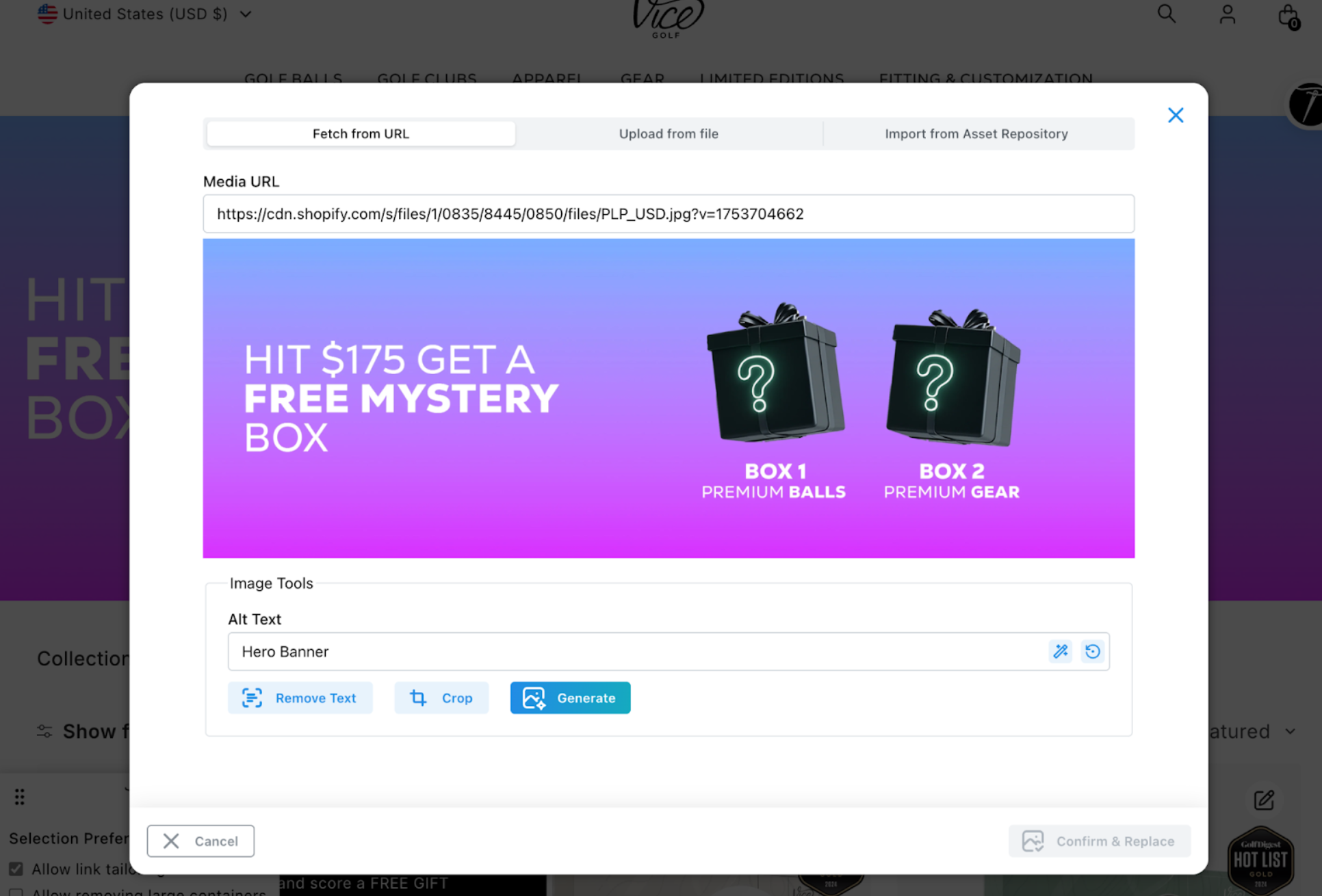

Or click on the Generate alt text icon to use AI-powered generation
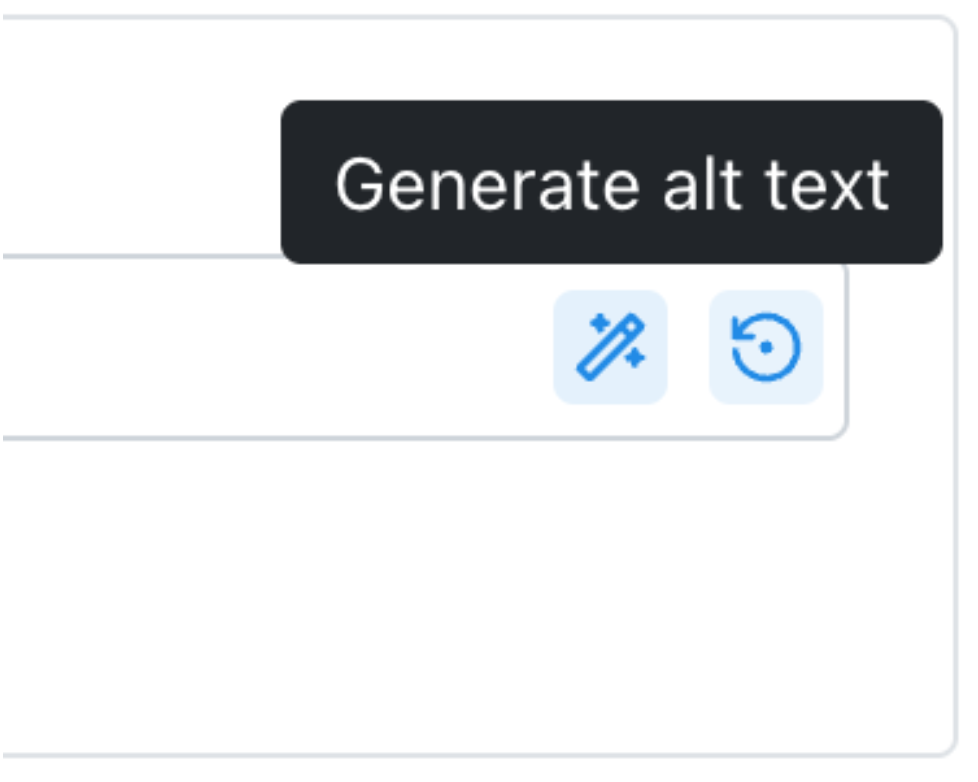
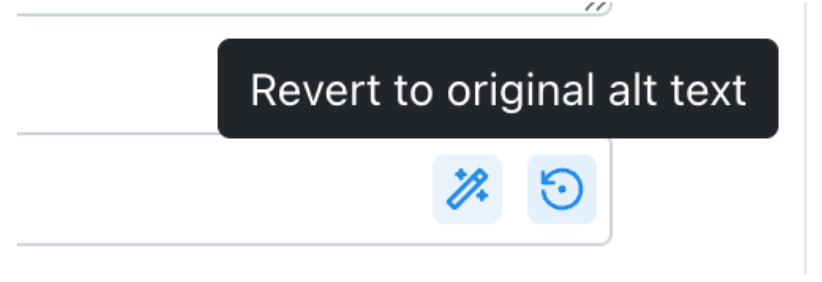
You can use the "Revert to original alt text" icon to restore to the original alt text
Auto-Generated Alt Text for Uploaded/Imported Images
Alt text is automatically generated when new images are uploaded or imported
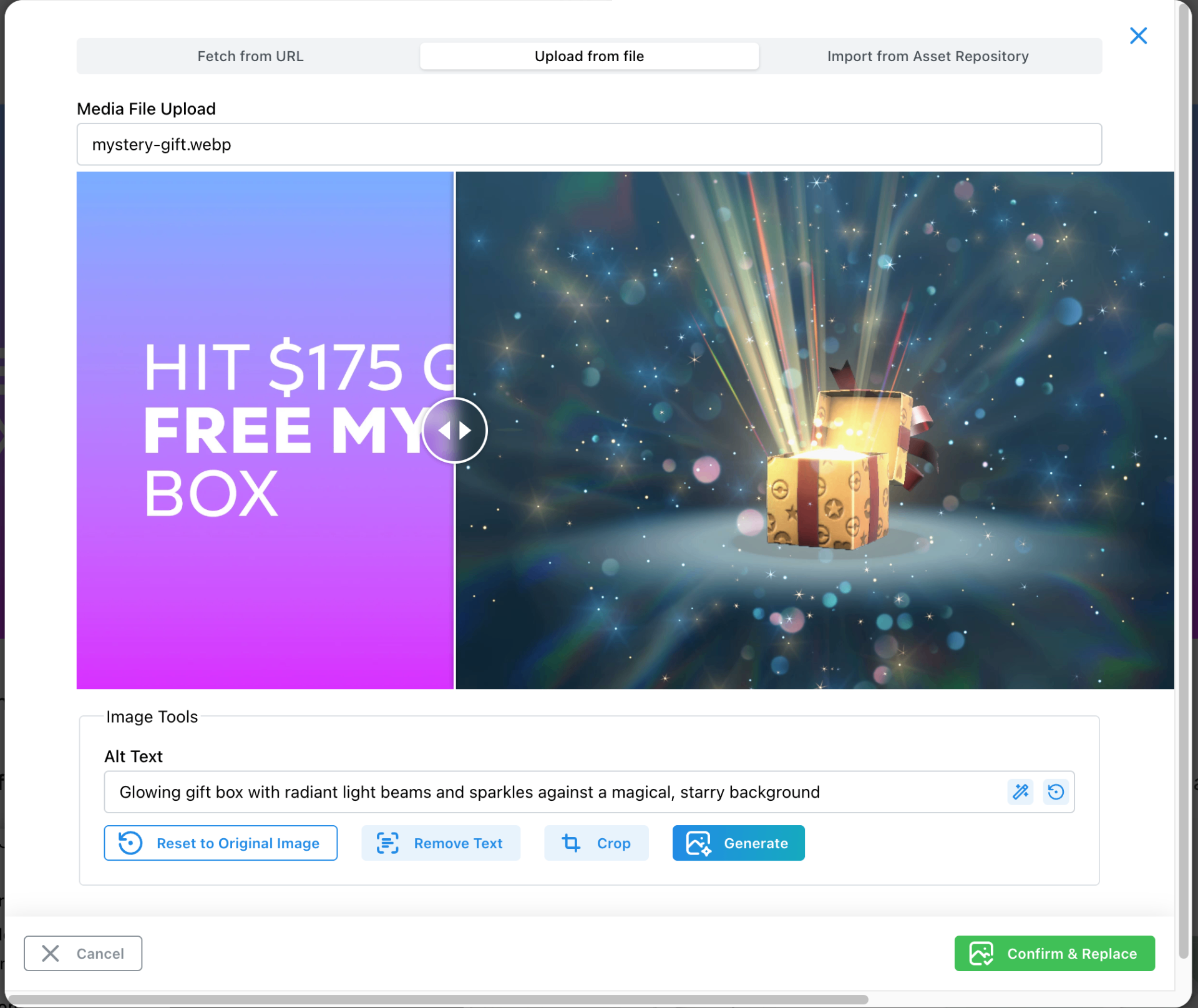
When you upload or import a new image, Tailor AI automatically generates descriptive alt text using AI technology. You can always regenerate or restore to the original alt text.
Example Auto-Generated Alt Text
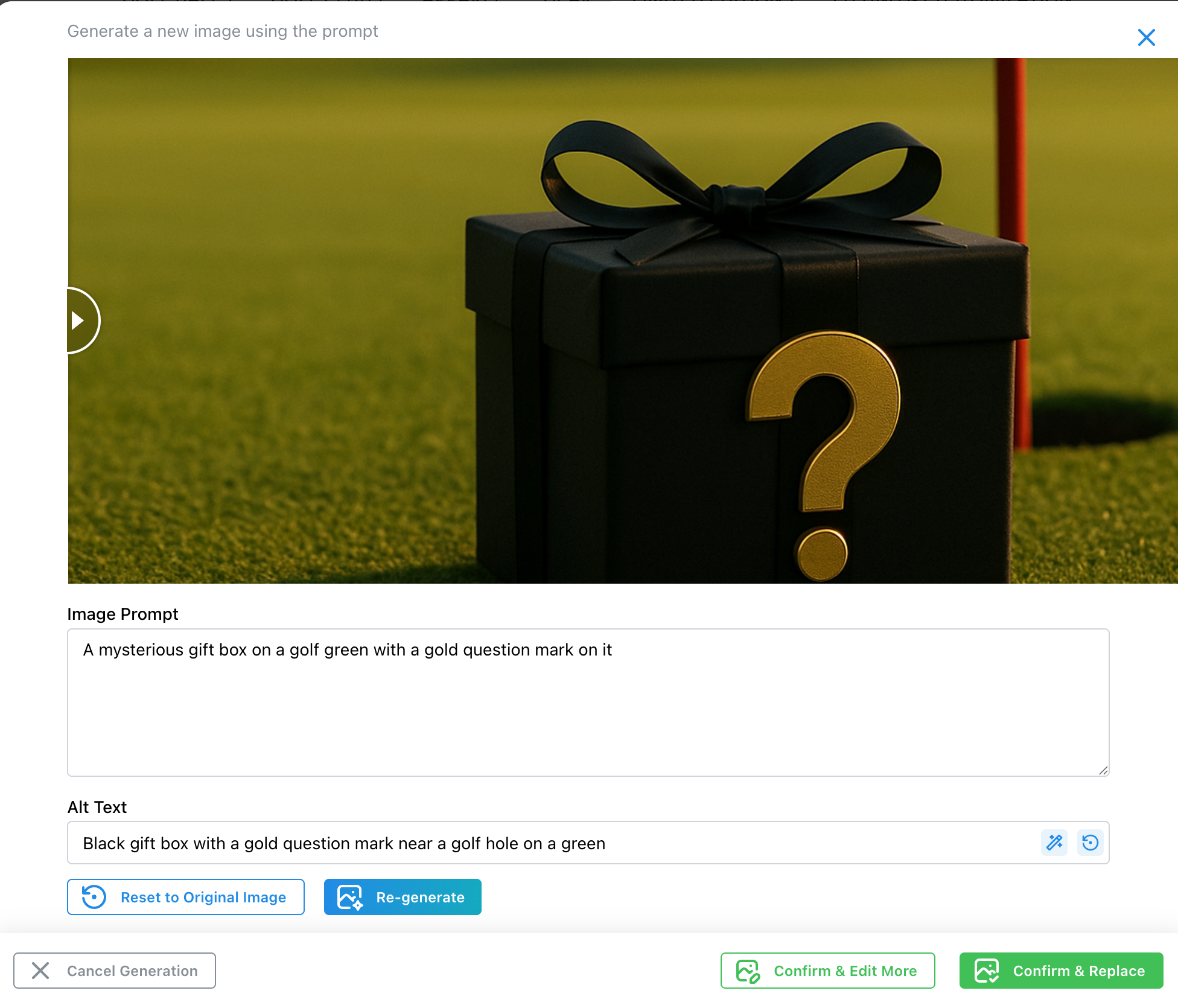
AI-Generated Images with Alt Text
Alt text is automatically created for AI-generated images
When you generate new images using AI, alt text is automatically created based on the image prompt and content analysis.
Example Auto-Generated Alt Text