
Shopify Integration
Connect your Shopify store to Tailor AI and tie completed checkouts, and their revenue, back to the experiment each shopper saw. Install the app, switch it on in your theme, and you're done. No code to edit, no IDs to copy, and nothing to configure inside Shopify.
Quick start
Install in 4 steps
- 1Click your install linkTailor sends you a link made for your store. Click it, select your store, and approve.Details
- 2Turn on in themeClick Open theme editor in the app, then Save. Until you do, nothing is tracked.Details
- 3Create a goalIn Tailor, pick the Shopify event to track. Checkout completed carries revenue.Details
- 4Verify end to endSelect the goal in your experiment, place a test order, and see it land in Tailor.Details
Step 1: Click Your Install Link
The Tailor team sends you a Shopify install link, already made for your store. You don't need to look up your store's address or send it to us. The link looks like this:
https://admin.shopify.com/oauth/install_custom_app?client_id=…&signature=…
- Click the link, and sign in to Shopify if it asks.
- If you manage more than one store, select the one you want Tailor AI on.
- Approve the install. Shopify opens the Tailor AI app inside your store admin, already connected to your Tailor account.
To open the app later, go to Apps at the bottom of your Shopify Admin sidebar and click Tailor AI, followed by your company name.
Step 2: Turn On Tailor AI in Your Theme
This is the one step only you can do, and nothing is tracked until it's done. Shopify loads Tailor AI on your storefront through a theme app embed, a switch in your theme editor that Tailor can't turn on for you.
In the Tailor AI app, the Enable Tailor AI in your Shopify theme card shows Incomplete. Click Open theme editor. Your theme editor opens in a new browser tab, where you do the two steps shown on the card.
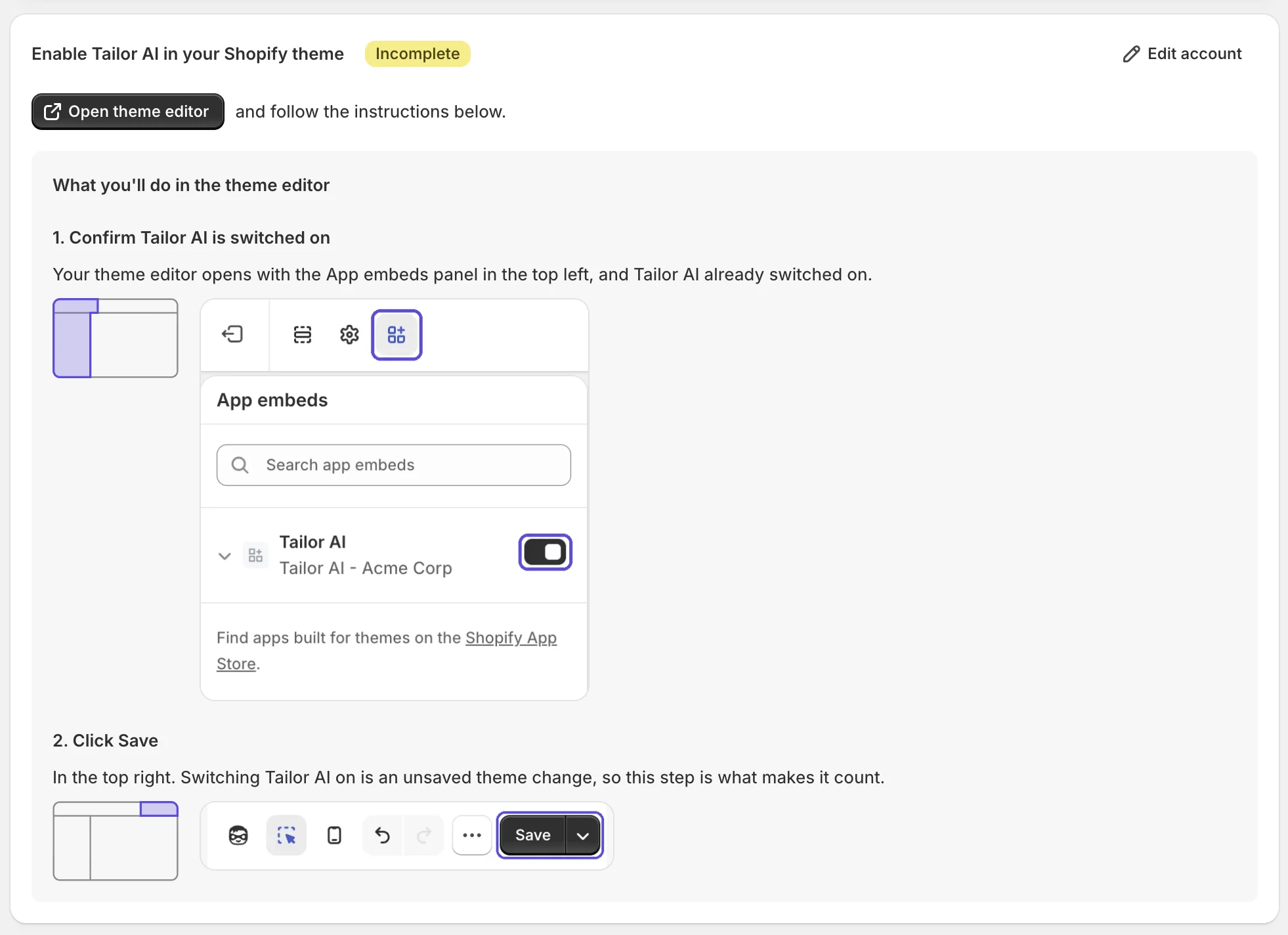
After you click Save, come back to the Tailor AI tab. The card now shows Completed. If it still says Incomplete, refresh the page.

Theme editor didn't switch it on?
In your theme editor, open App embeds, turn on Tailor AI, then press Save.
No code to edit, and it doesn't change how your theme looks. To stop using Tailor AI later, turn it off under App embeds and press Save.
Step 3: Create a Shopify Goal in Tailor
Goals live in Tailor, not in the Shopify app. In the Tailor AI Chrome extension, open the test you want to track, go to its Ramp & Test tab, and click Conversion to open the goals panel. Then click Create Goal.
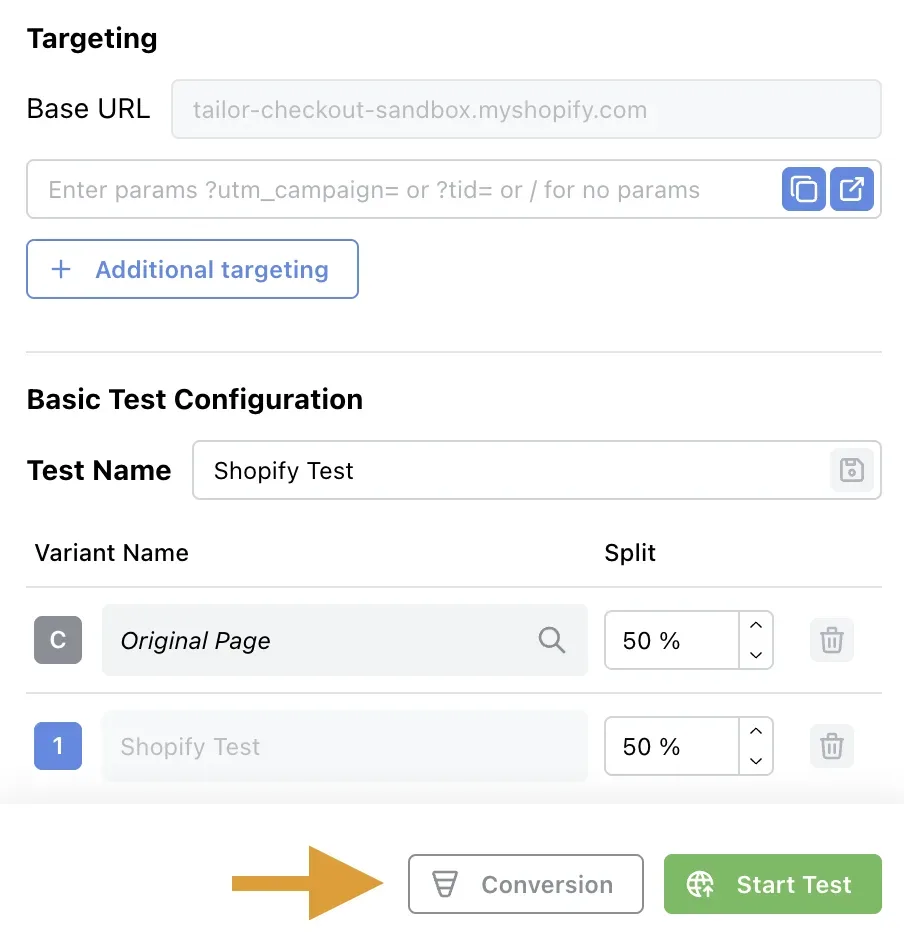
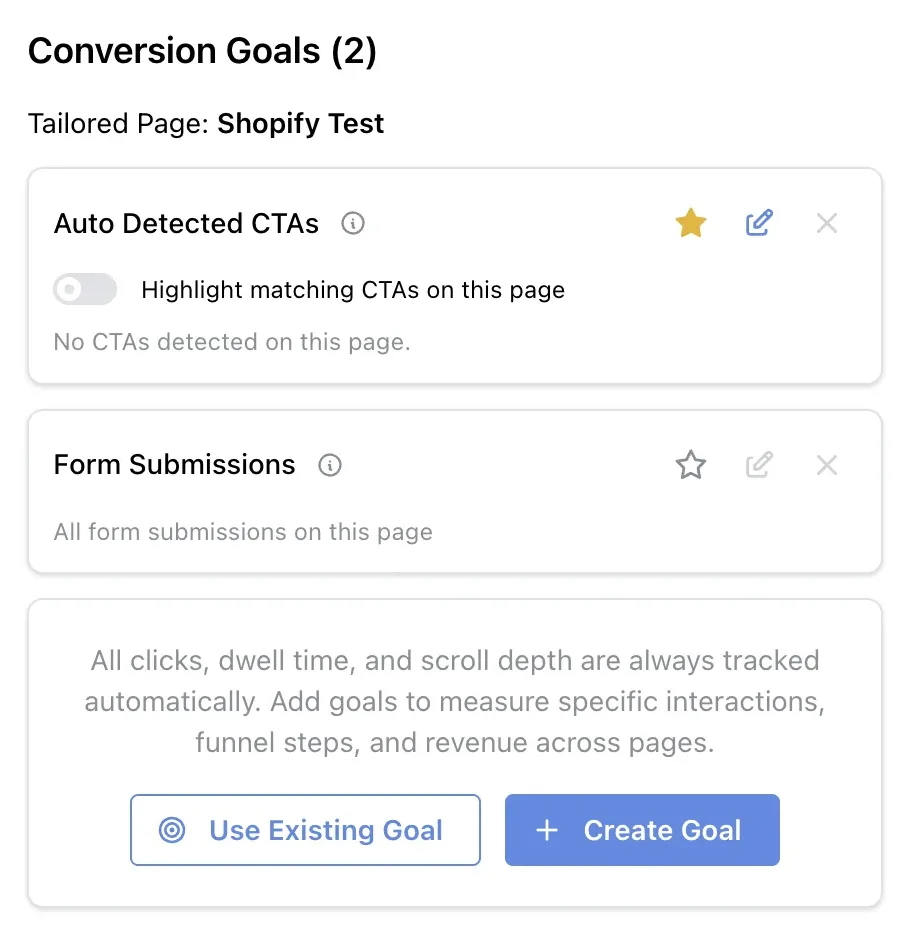
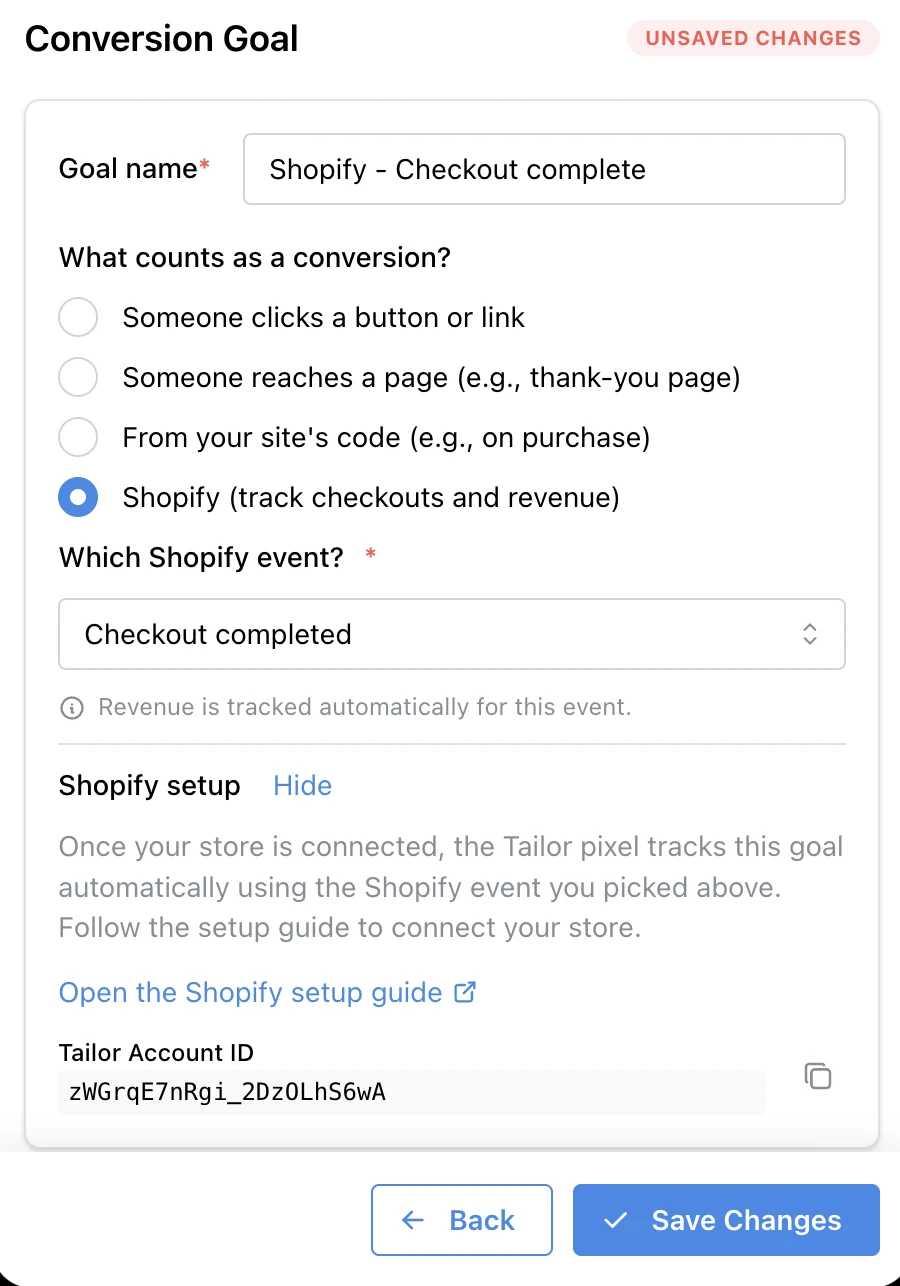
In the goal panel that opens, set it up like this:
- Name the goal.
- Under "What counts as a conversion?", choose Shopify (track checkouts and revenue).
- Under "Which Shopify event?", pick the event to track, for example Checkout completed. If the event carries an order total, revenue is tracked automatically, there's nothing to toggle.
- Save. That's it, there is nothing to copy into Shopify.
It syncs on its own
Once the theme card shows Completed, the app picks up your Shopify goals automatically. Within about a minute the goal appears in the Shopify app's Conversion goals table and starts tracking on your storefront.
Revenue is automatic
Events that carry an order total (like Checkout completed) send revenue in the order's own currency. Events without one (like a page view) just count conversions. There is no revenue checkbox to manage.
Step 4: Verify End to End
Conversions are measured against an experiment, so the real test is the full loop: a tailored page experiment measuring your Shopify goal, then a test order that shows up on its results.
- 1Pick the goal in your experiment. In the experiment's Ramp & Test tab, open Conversion and select your Shopify goal as the success metric. If you created the goal there in Step 3, it's already selected.
- 2Place a test order. Visit your store through a page the experiment runs on, then complete a Shopify test order. It fires Checkout completed just like a real one.
- 3Confirm in Tailor. The conversion and its revenue appear on the experiment's results, attributed to the variant you saw (counts can take a few minutes).
Quick sanity check anytime: open the Tailor AI app in Shopify Admin and confirm the theme card shows Completed and your goal is listed under Conversion goals. New goals appear within about a minute of saving.
Troubleshooting
The app asks you to connect
Most installs connect automatically. If the app shows an Account ID field instead, paste your Tailor Account ID (the 22-character ID under Shopify setup in any Shopify goal's panel, click to copy) and click Connect. It's a one-time step. To change it later, click Edit account.
The theme card still says Incomplete
Most often the embed was switched on but the theme wasn't saved. Follow Step 2 again and make sure you press Save.
You saved the theme, but the card still says Incomplete
The app may need a permission to read your theme. Close and reopen the Tailor AI app, and approve the permission Shopify asks for. If it still says Incomplete, contact the Tailor team.
"This app can't create or update script tags"
Safe to ignore. Shopify retired script tags in October 2026, and the theme app embed from Step 2 replaces them. Your Account ID still saves.
How It Works
Tailor's Shopify app connects your store to Tailor AI. The theme app embed loads the Tailor AI script on your storefront, and the app reports Shopify events, like a completed checkout, against your Tailor conversion goals. This links an order and its revenue back to the variant the shopper saw, so you can measure lift on revenue, not just clicks.
All goal setup happens in Tailor. You pick which Shopify event a goal tracks when you create the goal, and the app on your store picks it up automatically. There is no per-event configuration inside Shopify.
Supported Events
A Shopify goal can track any of Shopify's standard customer events. The Revenue column shows which ones carry an order total: for those, the goal records revenue automatically, in the order's own currency. Events without revenue (like page views) just count conversions.
| Shopify event | Revenue |
|---|---|
| Page viewed | No |
| Collection viewed | No |
| Search submitted | No |
| Product viewed | Yes |
| Cart viewed | Yes |
| Product added to cart | Yes |
| Product removed from cart | Yes |
| Checkout started | Yes |
| Checkout contact info submitted | Yes |
| Checkout address info submitted | Yes |
| Checkout shipping info submitted | Yes |
| Payment info submitted | Yes |
| Checkout completed | Yes |
For revenue results, pick Checkout completed as your goal's event. It carries the order total and it's the event Shopify reports when an order is placed. See Shopify's checkout_completed reference.