
A/B Testing with Tailor AI
Learn how to test and measure the performance of tailored experiences with confidence.
Overview
Tailor AI automatically runs A/B tests to compare your original and tailored landing pages. This helps you evaluate performance and confidently decide when to scale a personalized experience.
Video Guide
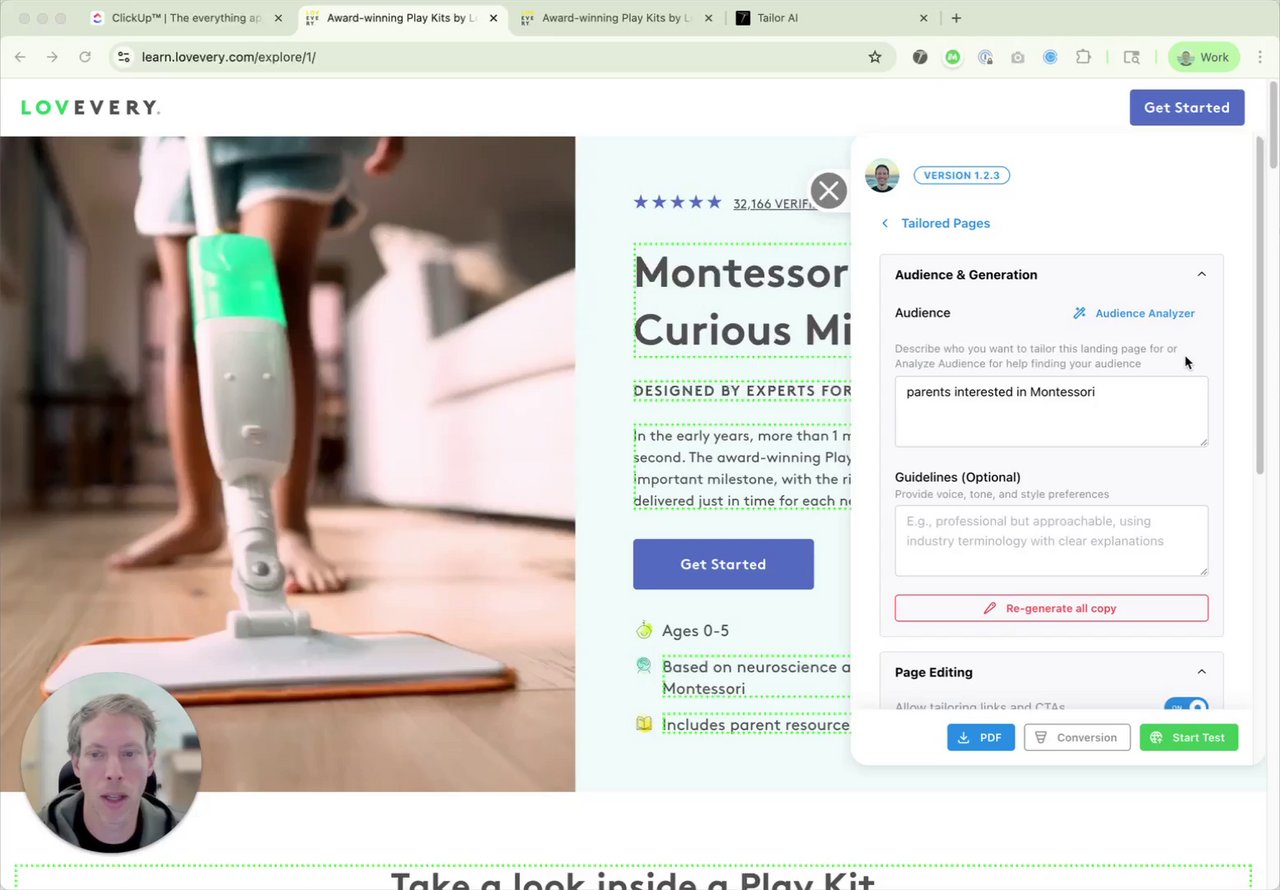
Publishing a Tailored Page & Automatic A/B Testing
Watch this step-by-step guide to see how to publish a tailored page and automatically set up A/B testing to measure performance.
When A/B Testing Begins
Testing Start Point
A/B testing begins when you ramp your tailored page by clicking "Start Test". Once ramped, Tailor automatically starts tracking conversions and user interactions to measure the performance difference between your original and tailored versions.
Conversion Tracking
By default, all click events are considered when measuring conversions. However, you have the option to limit conversion targets to specific CTAs (Call-to-Action buttons) that matter most to your business goals.
Conversion Target Options

Use the conversion settings to specify which actions should be tracked as conversions, allowing you to focus on the metrics that matter most for your campaign objectives.
How It Works
Automatic 50/50 Split
When a user visits a URL with a tid=xxxxx or custom=xxxxx parameter, Tailor automatically initiates a 50/50 split between the original and tailored versions. Results are tracked in real time via built-in dashboards.
Recommended Setup
You only need to run one campaign that directs traffic to your Tailor-powered page. Tailor handles the split test and reporting. There's no need to set up duplicate ad campaigns. Dashboards update automatically, and we can help you integrate with GA4, Amplitude, or other tools for deeper insights.
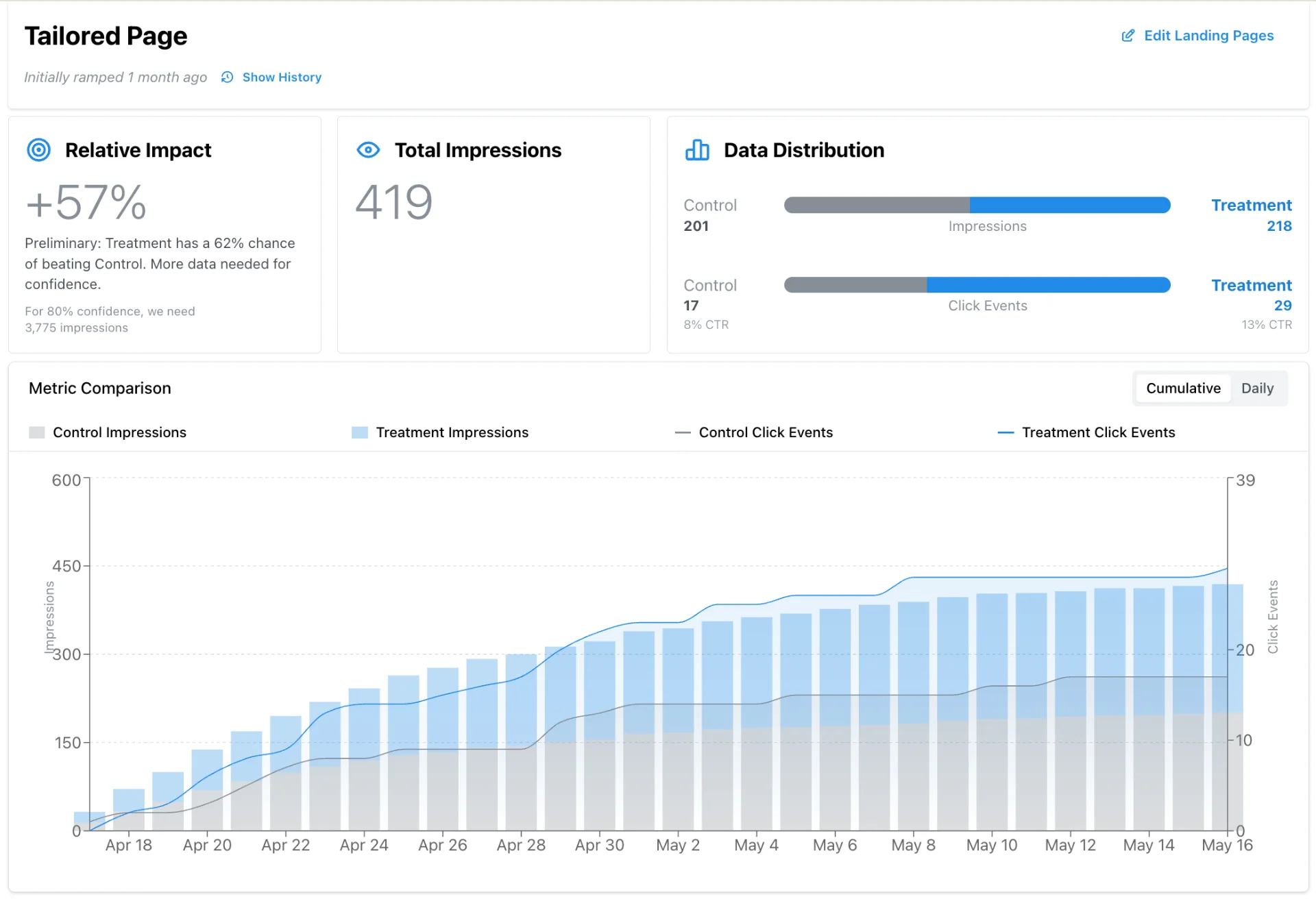
Sample Dashboard
A real-time dashboard will show test results like conversion lift and engagement metrics:
Manual Split Option
If preferred, you can direct 50% of traffic to the original page and 50% to a tailored version by setting up separate ad variations. However, this approach bypasses Tailor's built-in A/B testing and won't generate dashboard data.
Ramping to 100%
After validating the tailored version's performance, you can push all traffic to the new experience by clicking the "Ramp to 100%" button in the dashboard.

Use "Ramp to 100%" to fully launch your tailored page to all visitors.
Preview Modes
Add the following parameters to a URL to force the page into either test mode:
Treatment
&preview_mode=treatmentForces display of the tailored experience.
Control
&preview_mode=controlForces display of the original version.
Best Practices
- 1Use Tailor's default 50/50 split to simplify setup and analytics.
- 2Configure conversion targets to focus on specific CTAs that align with your business goals.
- 3Monitor test results through the built-in dashboard.
- 4Use preview parameters to validate both versions before launch.
- 5Click "Ramp to 100%" to fully roll out once testing is complete.
- 6Integrate with tools like GA4 or Amplitude for additional analytics.