
QA & Preview
Verify your tailored experiences before they go live. Preview, share, and validate without sending real traffic.
One-Click Verification Before Launch
When you hit Start Test, Tailor shows a confirmation screen that summarizes everything about your experiment in one place: changes, conversion goals, targeting, URL, and traffic split. You can verify all of this in under 30 seconds before going live.
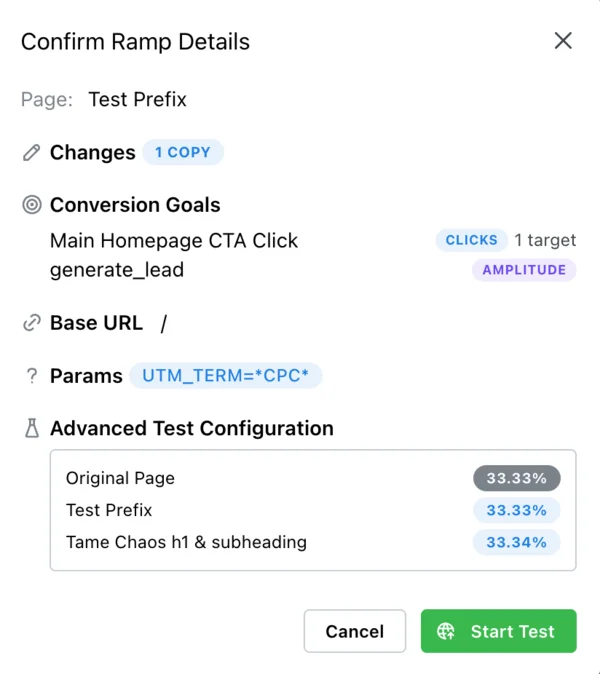
This screen confirms your changes, goals (including Amplitude goals), base URL, targeting parameters, and how traffic is split across variants.
Pre-Launch QA Checklist
For a more thorough review, run through this checklist before starting any experiment:
Preview the variant
Use the Tailor extension preview button or append ?preview_mode=treatment to the URL.
Check eligibility
Confirm only the intended segment matches your targeting rules. Watch for unintended overlap with other experiments.
Inspect layout
Check for broken sections, spacing issues, and mobile regressions on both desktop and mobile.
Speed sanity check
Confirm the tailored page loads quickly (Tailor is async and non-blocking, so load times should be the same).
Verify tracking
Trigger the conversion goal on both control and variant. Confirm the event fires identically in your analytics.
Click diagnostics (optional)
Verify CTA clicks are still tracked as expected after DOM changes.
How Preview Mode Works
Preview mode lets you see any variant without being part of a live experiment. It replicates production behavior exactly, with one difference: preview bypasses CDN caching, so the initial load may be slightly slower than production.
Preview URL Parameters
?preview_mode=treatmentShows the tailored version
?preview_mode=controlShows the original version
?preview_mode={variant_id}Shows a specific variant (for multi-variant tests)
Layout, content, targeting, and tracking all behave identically to production. Preview is the most reliable way to QA before launch.
QA Behind Login or Paywall
Tailor operates at the DOM level after the page loads. It doesn't interact with authentication, sessions, or paywall logic. This means:
- Log in normally, then use the Tailor extension or preview link to QA
- No special setup needed for authenticated pages
- Tailor is agnostic to whatever access restrictions your site has
Forcing Yourself Into the Treatment Group
During testing, you may want to guarantee you see the tailored version:
Option 1: Tailor Extension (easiest)
Open the extension, find your variant, click the preview button (external-link icon). A new tab opens with the variant loaded.
Option 2: Manual URL parameter
Add ?preview_mode=treatment or ?preview_mode={variant_id} to the URL.
Troubleshooting: Seeing Control When Expecting Treatment
If you're not seeing the variant you expect:
- 1Try an incognito window to avoid sticky assignment from a previous session
- 2Clear cache and hard refresh (Cmd+Shift+R / Ctrl+Shift+R)
- 3Verify the experiment is active and ramped (not deramped to 0%)
- 4Check that your targeting rules match your current context (UTMs, device, geo)