
Integration · Framer
A/B testing and personalization for Framer sites, without rebuilding them
Framer gives you pixel-perfect design control. But testing different headlines, swapping hero images, or personalizing for different audiences usually means duplicating pages or rebuilding components. Tailor sits on top of your Framer site and adapts pages in the browser, keeping your design system intact while letting you run experiments.
Last updated March 1, 2026
 Tailor AI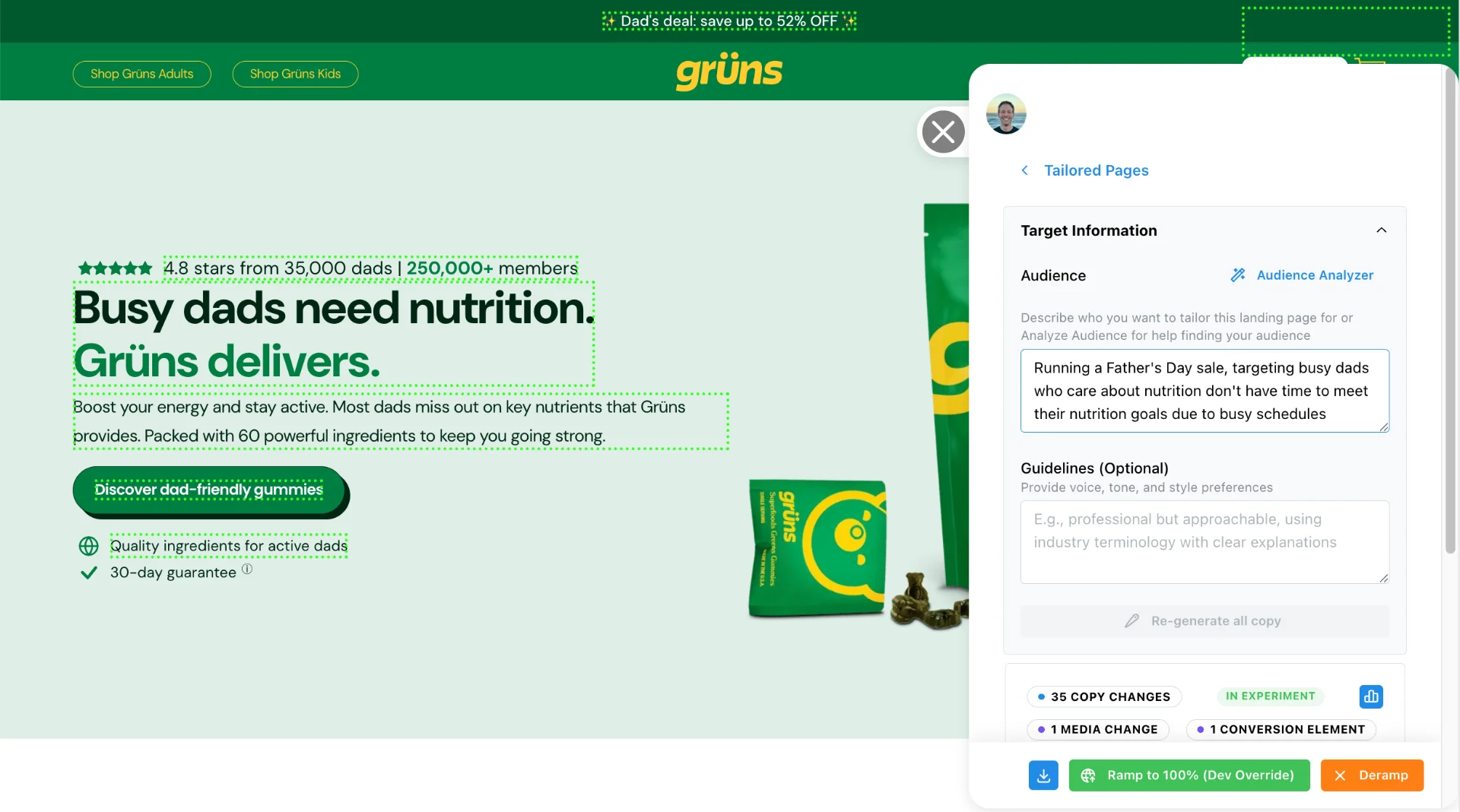
- How it works
- One JavaScript tag in Framer's custom code settings. Tailor loads asynchronously and adapts page elements without touching your Framer project.
- What you get
- A/B testing, keyword matching, audience personalization, and analytics on any Framer-hosted page.
Teams running Tailor






Setup
How it works
- 1
Add the script tag
Paste Tailor's one-line JavaScript snippet into your Framer site's custom code settings (Site Settings, General, Custom Code, End of <head> tag).
- 2
Select elements to change
Open any published Framer page in Tailor's Chrome extension and click on the headlines, images, or CTAs you want to test.
- 3
Set targeting and publish
Define your audience rules (keyword, campaign, geo, device, or enrichment segment) and publish. Changes go live instantly.
No Framer editor changes. No republishing. The script loads asynchronously and is designed to minimize impact on page speed. Search engines see your original Framer HTML, so your SEO structure is preserved.
"It takes five minutes to build a page, so I hope I don’t need any help."
Capabilities
What you can test and personalize
- Headlines and subheadlines Swap text layers in Framer components without touching component overrides. Match keyword intent or campaign themes across breakpoints.
- Hero images and section backgrounds Replace visuals by ad creative or visitor segment. Tailor swaps the rendered image without affecting Framer motion effects applied to the container.
- CTA buttons Change text, style, or destination by audience. Works with Framer's button components and link elements at every responsive breakpoint.
- Navigation visibility Show or hide Framer's nav component for squeeze page tests without duplicating your page layout.
- Content sections Show or hide Framer sections based on audience, industry, or campaign. Tailor targets the rendered DOM, so nested components and auto-layout stacks work the same way.
- Copy for different campaign themes Adapt messaging per ad group without duplicating Framer pages or creating extra component variants in your project.
All without opening the Framer editor or republishing your site. Watch how it works.
Context
Framer-specific considerations
Framer’s component-based architecture means some deeply nested elements may need CSS selector adjustment when setting up experiments. Tailor works at the DOM level after the page renders, which avoids the compatibility issues that some other tools run into with Framer.
"We use Framer... it doesn’t work well with [some tools] and caused a lot of problems."
A few things to keep in mind:
- Performance. Framer sites are typically fast thanks to static hosting. Tailor loads asynchronously to maintain that speed.
- SEO. Framer generates static HTML that search engines index directly. Tailor's browser-side changes don't alter what Googlebot sees in the source.
- Component nesting. Framer components can produce deep DOM trees. If an element selector breaks after a Framer update, you can re-select it in Tailor's Chrome extension in seconds.
- Platform flexibility. Tailor's experiments are platform-independent. If your team moves from Framer to another platform later, the same testing workflow carries over to Webflow, WordPress, React, or anything else.
See Tailor on your Framer site
Use cases
Common patterns from Framer teams
Patterns from conversations with marketing teams building on Framer.
- Campaign-specific landing pages
- Design one hero in Framer, then let Tailor swap the headline and CTA copy based on which ad the visitor clicked. Keeps your Framer project clean instead of duplicating frames for every campaign variant.
- Headline testing
- Quickly test different value propositions without designer involvement. Select a headline in the Chrome extension, write a variant, and publish.
- Mobile optimization
- Combine Framer's responsive design with Tailor's audience targeting for mobile-heavy campaigns. Adapt messaging by device without maintaining separate mobile layouts.
- Multi-language support
- Framer's component-based architecture makes it easy to swap text layers per locale. Overlay translated copy on your existing Framer components without duplicating pages or maintaining parallel site versions.
- Non-destructive iteration
- Framer publishes static HTML. Tailor modifies the rendered output in the browser after load. If you pause or remove an experiment, visitors see your original Framer design. No build step needed to roll back.
Framer teams typically move fast on design but slow on testing. Tailor closes that gap.
Prerequisites
Before you start
Make sure you have the following before adding Tailor to your Framer site:
- A paid Framer plan (Mini, Basic, or Pro). Custom code injection is not available on Framer's free plan.
- Access to Site Settings in your Framer project. You need to paste a script tag into the custom code section (Site Settings > General > Custom Code > End of <head> tag).
- Your Framer site published to a live URL. Tailor works on the published version, not the Framer editor canvas or preview mode.
- A custom domain connected (recommended). Framer's default .framer.app domains work, but a custom domain gives you a stable URL for experiments and avoids browser extension limitations on subdomains.
- Chrome browser for setup. Tailor's visual element selector runs as a Chrome extension on your published pages.
Add one script tag in your Framer site settings, with no plugins, npm packages or React code.
Troubleshooting
Common issues
- Changes look different in preview vs published site
- Framer's in-editor preview does not run custom code. You will only see Tailor changes on your published site. Always test on your live URL, not the Framer canvas or preview mode.
- Component re-rendering resets Tailor changes
- Framer uses React under the hood. If a Framer component re-renders (for example, an animated component or one with state changes), the DOM node may be replaced, and Tailor needs to re-apply changes. Tailor uses a MutationObserver to handle this automatically. If a specific element keeps resetting, it is likely re-rendering frequently. Try targeting a parent element instead.
- Deep component nesting produces fragile selectors
- Framer generates deeply nested DOM trees, especially for layouts with auto-layout, stacks, and components. If a CSS selector breaks after a Framer design update, open your published page in Tailor's Chrome extension and re-select the element. This takes a few seconds.
- Custom domain DNS propagation delay
- If you recently connected a custom domain to Framer, DNS changes can take up to 48 hours to fully propagate. During this window, some visitors may see the .framer.app URL, and Tailor experiments scoped to your custom domain may not trigger for them.
- Framer page transitions interfere with experiments
- Framer's built-in page transitions animate between routes. If Tailor modifies elements on the incoming page, there may be a brief flash during the transition. For pages with active experiments, consider disabling Framer page transitions or using a simple fade instead of a complex animation.
QA
Verify Tailor is running
After adding the script to your Framer site settings, follow these steps to confirm the integration is working:
- 1
Publish your Framer site (Site Settings > Publish). Custom code changes do not take effect until you publish.
- 2
Open your published site in Chrome using your custom domain or .framer.app URL.
- 3
Open DevTools (right-click > Inspect, or Cmd+Option+I on Mac).
- 4
Go to the Console tab and type window.__tailor then press Enter. If you see an object (not "undefined"), Tailor is loaded.
- 5
Switch to the Network tab and filter by "tailorhq". You should see a request to app.tailorhq.ai with a 200 status.
- 6
Navigate between pages on your Framer site. If you use Framer page transitions, verify Tailor re-applies changes after each transition completes.
If the script is not loading, confirm you pasted the tag into the "End of <head> tag" field (not "End of <body> tag") in Site Settings > General > Custom Code, and that you published after saving.
FAQ
Frequently asked questions
Tailor works at the DOM level after your Framer page renders. It adapts visible elements like text, images, and links regardless of how they're structured in Framer's component system.
Tailor loads asynchronously after the page renders. It's designed to minimize performance impact on Framer's already-fast static hosting.
Yes. Tailor can adapt any visible element on the rendered page, including content inside custom code components.
Tailor targets elements by CSS selectors. If your page structure changes significantly during a Framer update, you may need to update your element selectors in Tailor.
Yes. Tailor is additive and is designed to coexist with analytics tools, form providers, or other scripts on your Framer site without conflicts.
Make your great-looking Framer site convert visitors
Add one script tag without changing your Framer site, and see Tailor running in minutes.