
Integration · Webflow
A/B testing and personalization for Webflow, with no changes to your Webflow project
Webflow gives you beautiful pages. But testing headlines, swapping images, or personalizing for different audiences usually means rebuilding in the designer. Tailor sits on top of your Webflow site and adapts pages in the browser, so you can run experiments without touching Webflow at all.
Last updated March 1, 2026
 Tailor AI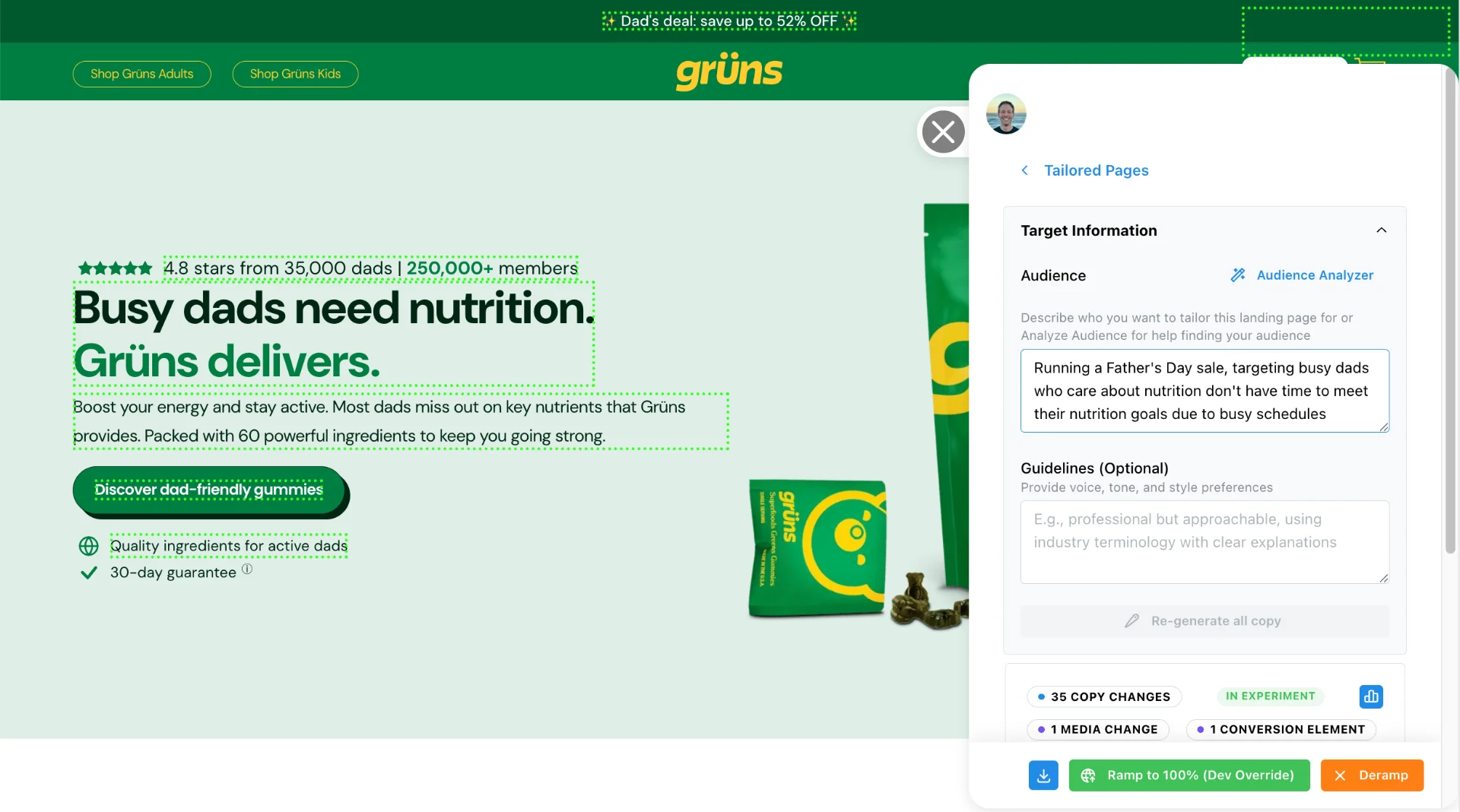
- How it works
- One JavaScript tag in Webflow's custom code settings. Tailor loads asynchronously and adapts page elements in the browser.
- What you get
- A/B testing, keyword matching, audience personalization, and analytics on any Webflow page.
Teams running Tailor






Setup
How it works
- 1
Add the script tag
Paste Tailor's one-line JavaScript snippet into your Webflow site's custom code settings (Project Settings, Custom Code, Head Code).
- 2
Select elements to change
Open any published page in Tailor's Chrome extension and click on the headlines, images, or CTAs you want to test.
- 3
Set targeting and publish
Define your audience rules (keyword, campaign, geo, device, or enrichment segment) and publish. Changes go live instantly.
No Webflow designer changes. No staging. No republishing. The script loads asynchronously and is designed to minimize impact on page speed. Search engines see your original Webflow HTML, so your SEO structure is preserved.
"Just one line of JavaScript and it works. That’s what I need."
Capabilities
What you can test and personalize
- Headlines and subheadlines Match keyword intent or campaign themes without opening the Webflow Designer. Test value props across CMS collection pages from one experiment.
- Hero images Swap visuals by ad creative or visitor segment. No need to re-upload assets in Webflow or adjust Interactions tied to the original image.
- CTAs Change button text, color, or destination by audience. Works on Webflow's native button elements and link blocks.
- Navigation elements Show or hide your Webflow navbar for squeeze page tests without creating a separate page template.
- Entire sections Show industry-specific proof points or case studies. Useful on CMS collection templates where the layout is shared but messaging should vary by audience.
- Language overlays Adapt language for geo-targeted campaigns without duplicating Webflow pages or managing Webflow's localization add-on.
All without opening the Webflow designer. Watch how it works.
Context
Why not just use Webflow Optimize?
After Google Optimize shut down in September 2023, Webflow acquired Intellimize to build native testing into the platform. That’s a real option for teams fully committed to Webflow.
But some teams need more than what’s built into the CMS. A few reasons Webflow teams use Tailor instead:
- Platform-agnostic. Test on Webflow now, move to Framer or React later without losing your testing workflow.
- Built-in enrichment for B2B personalization. Show different messaging based on company, industry, or role, not just traffic splits.
- Measurement tied to trials, pipeline, and revenue.
- Works across your entire web presence, not just one CMS.
"Things kind of blew up once Google Optimize went away."
See Tailor on your Webflow site
Use cases
Common patterns from Webflow teams
Patterns from conversations with marketing teams running on Webflow.
- Landing page testing
- Marketers want to test new hero images or headlines without waiting for design/dev cycles. Tailor lets you select any element and create a variant in minutes.
- Campaign-specific pages
- Match Google Ads keywords or Meta creative themes to page messaging. Instead of building separate pages for each campaign, adapt one page per audience.
- Squeeze page tests
- Remove navigation to focus visitors on a single conversion action. Run an A/B test to measure the impact without permanently changing your Webflow layout.
- Multi-language support
- Overlay translations for geo-targeted campaigns without creating duplicate Webflow pages.
- Non-destructive iteration
- Changes are applied in the browser. The original Webflow page is always the fallback. Nothing breaks if you pause an experiment.
“Our site is fairly custom, so things tend to break as we iterate.” Tailor changes are non-destructive. Your published Webflow site stays exactly as it is.
Prerequisites
Before you start
Make sure you have the following before adding Tailor to your Webflow site:
- A Webflow paid plan (CMS, Business, or Enterprise). Custom code injection is not available on the free Starter plan.
- Access to your Webflow Project Settings. You need to paste a script tag into the Custom Code section (Project Settings > Custom Code > Head Code).
- Your site published to a live URL. Tailor works on the published version of your site, not in the Webflow designer preview.
- Chrome browser for setup. Tailor's visual element selector runs as a Chrome extension on your published pages.
Add one script tag, with no Webflow Apps install, API keys or third-party connectors.
Troubleshooting
Common issues
- Changes not appearing after publishing
- Webflow's CDN caches pages aggressively. After adding the Tailor script, publish your site and wait 1-2 minutes for the CDN to propagate. Hard-refresh the page (Cmd+Shift+R or Ctrl+Shift+R) to bypass your browser cache.
- Script not loading on staging URLs
- Webflow staging URLs (*.webflow.io) use the same custom code as your published site, but some ad blockers treat staging domains differently. If the script does not load on staging, test on your custom domain instead.
- Webflow Interactions conflicting with Tailor changes
- Webflow Interactions (animations triggered by scroll, click, or page load) can overwrite DOM changes that Tailor applies. If an element has both a Webflow Interaction and a Tailor experiment, the interaction may reset the element. Avoid testing elements that have active Webflow Interactions, or pause the interaction while the experiment runs.
- CMS collection items showing inconsistent changes
- Webflow CMS pages share a template. Tailor targets elements by CSS selector, so changes apply to all pages using that template. If you want different changes per collection item, use Tailor's URL targeting rules to scope experiments to specific collection page URLs.
- Custom code not running in the Webflow designer
- This is expected. Webflow does not execute custom code inside the designer. You will only see Tailor changes on your published or staging site.
QA
Verify Tailor is running
After adding the script to your Webflow project, follow these steps to confirm the integration is working:
- 1
Open your published Webflow site in Chrome (not the Webflow designer or staging preview).
- 2
Open DevTools (right-click > Inspect, or Cmd+Option+I on Mac).
- 3
Go to the Console tab and type window.__tailor then press Enter. If you see an object (not "undefined"), Tailor’s script has loaded.
- 4
Switch to the Network tab and filter by "tailorhq". You should see a request to app.tailorhq.ai. A 200 status means the script loaded and connected.
- 5
If you have an active experiment, navigate to a page it targets. Check the Elements panel to confirm the DOM reflects your variant text or image.
- 6
Check the Console for any error messages starting with "[Tailor]". These indicate configuration issues like an invalid site ID or targeting rule.
If you do not see the script loading, double-check that you pasted the tag into Head Code (not Footer Code) in Project Settings > Custom Code, and that you published the site after saving.
FAQ
Frequently asked questions
No. Tailor works with any Webflow plan that supports custom code (all paid plans). No additional Webflow features or integrations needed.
Tailor loads asynchronously and is designed to minimize performance impact. The script loads after your page renders to avoid blocking the rendering path.
Yes. Tailor works at the DOM level, so it can adapt content on any Webflow page, including CMS-generated pages.
Tailor targets page elements by CSS selectors. If your selectors change during a redesign, you will need to update your Tailor experiments to match the new page structure.
Yes. Tailor is additive and is designed to coexist with other Webflow integrations, analytics tools, and marketing scripts without conflicts.
Start testing on your Webflow site
Add one script tag without changing your Webflow site, and see Tailor running in minutes.